AirDrop Android: 7 Proven Ways to Share Files Fast
airdrop android sharing has changed. If you have a supported Android phone, you can now use Quick Share to send files to an iPhone through AirDrop, and receive files back, without a cable or a third party app. If your phone is not supported yet, you still have solid fallbacks, including a QR code share, cloud links, and browser based tools that work on almost any phone. If you are facing other AirDrop issues, the common fixes are covered in the AirDrop problems hub.
Start with the short answer. Check Quick Share on your Android phone for a setting called Share with Apple devices. If you see it, turn it on, set the iPhone to Everyone for 10 minutes, keep both phones close together, and send from the Share menu. If you do not see that setting, skip to the Snapdrop and PairDrop section below, because that route works today on almost every phone.
The new bridge: Quick Share meets AirDrop
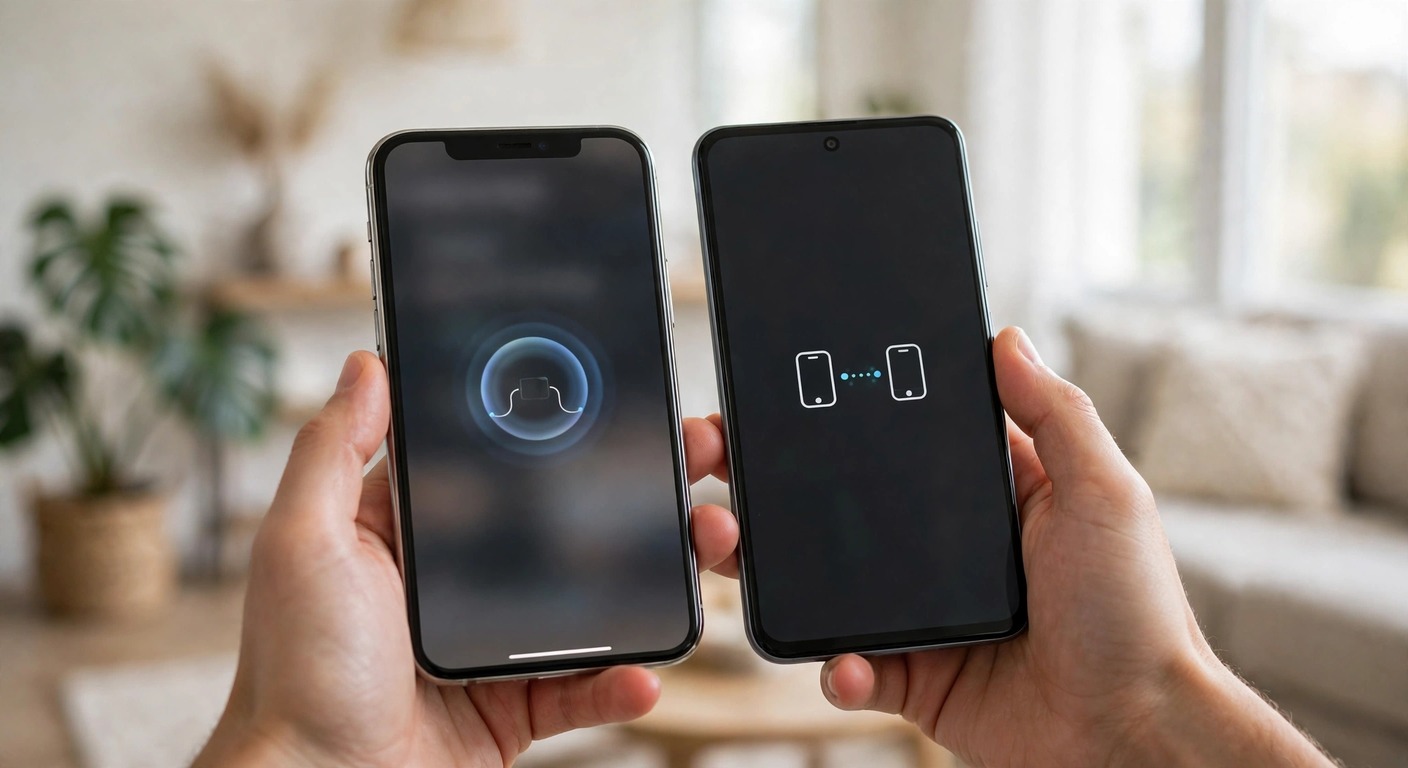
For years, AirDrop and Android sharing lived in separate worlds. AirDrop was Apple’s system for iPhone, iPad, and Mac, while Android phones used Nearby Share, which later became Quick Share. The new bridge does not turn an Android phone into an iPhone. It lets a supported Android phone speak the same nearby sharing language as AirDrop, so the iPhone sees the Android phone as a nearby device it can accept files from.
The feature first arrived on Pixel 10, then expanded during 2026 to more Pixel models and to phones from Samsung and other major brands. That rollout is still staggered, which is why two phones from the same brand can behave differently. A newer software version, a newer Quick Share version, and a compatible hardware setup all have to line up before the Apple option appears.
Think of this as a direct nearby transfer, not a cloud upload. The phones find each other with Bluetooth, then move the file over a local Wi-Fi connection. You do not need to join the same Wi-Fi network, and you do not need to send the file through a chat app that shrinks photos or videos. Keep both screens awake during the transfer, and stay close until it finishes.
How to check whether your phone supports it
Do not guess from the brand name alone. The fastest check takes less than a minute, and it tells you more than any model list can, because support can arrive with an update after you buy the phone. If the setting is missing, your phone may gain it later, or it may never gain it, and the fallbacks below still cover you.
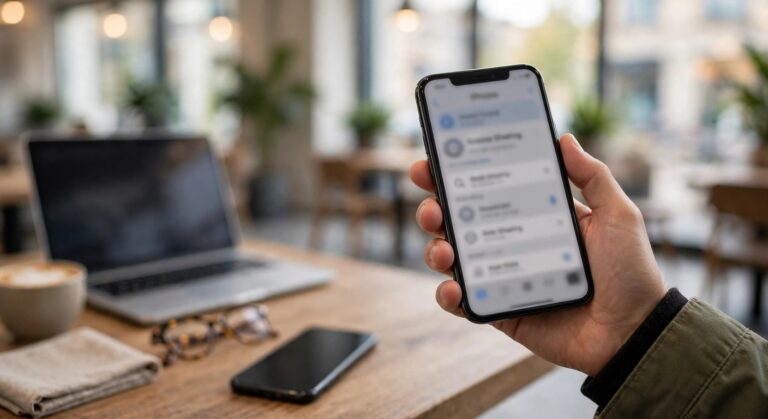
- Open Settings on your Android phone, then search for Quick Share.
- Open Quick Share, then look for Share with Apple devices or a similar Apple sharing option.
- If that option is present, turn it on. If it is absent, your phone does not support direct AirDrop sharing yet.
- Also check Settings, then System, then System update, and install any pending update before you conclude that support is missing.
- Turn on Wi-Fi and Bluetooth, then try the check again after a restart.
On some phones, Quick Share lives in a different place. Samsung phones may show it under Settings, then Connected devices, while other brands place it under Settings, then Google, then Devices and sharing. The name to search for is still Quick Share, and the Apple option is the clue that matters. If you only see Your devices, Contacts, and Everyone for 10 minutes, that is the normal Android to Android receive mode, not the Apple bridge.
Set both visibility settings before you send
Cross platform sharing fails most often because only one side is visible. The Android side must have Share with Apple devices turned on, and the iPhone side must be set to Everyone for 10 minutes. That 10 minute window is a privacy feature. After it ends, the iPhone returns to its previous setting, so a stranger cannot keep sending files to it all day.
On the iPhone, open Settings, then General, then AirDrop, and choose Everyone for 10 minutes. You can also use Control Center if you prefer, and our guide on how to turn on AirDrop walks through both paths. On the Android phone, open Quick Share settings and confirm that Share with Apple devices is on, and that Quick Share receive mode is not set to a mode that hides the phone from everyone.
Before you send, turn off Personal Hotspot on both phones, disconnect any VPN for the test, and keep both phones unlocked with their screens on. Hotspot and VPN tools can interfere with the local Wi-Fi link that carries the file. A thick metal case can also weaken the signal, so remove it for a first test if the phones cannot see each other.
How to send from Android to iPhone
- On the iPhone, set AirDrop to Everyone for 10 minutes.
- On the Android phone, open the photo, video, document, or link you want to send.
- Tap Share, then tap Quick Share.
- Wait for the iPhone to appear in the nearby devices list, then tap it.
- On the iPhone, tap Accept on the AirDrop prompt.
- Keep both phones close and awake until the transfer finishes, then check Photos or Files on the iPhone.
If you are sending photos, the same flow works for a single photo or a small batch. For a photo heavy transfer, start with one photo to prove the connection works, then send the rest. If you need photo specific steps on the Apple side, see our guide on how to AirDrop photos, which explains where accepted photos land and how to find them after the transfer.
How to send from iPhone to Android
- On the Android phone, turn on Share with Apple devices in Quick Share settings.
- Make sure Quick Share receive mode is active, and keep the Android screen on and unlocked.
- On the iPhone, open the file, tap Share, then tap AirDrop.
- Wait for the Android phone to appear as a nearby device, then tap it.
- On the Android phone, tap Accept when the Quick Share prompt appears.
- Wait for the transfer to finish, then open the file from Downloads, Photos, or Files, depending on the file type.
The iPhone to Android direction feels the same as a normal AirDrop, which is the point. The iPhone user does not need to install an Android app, and the Android user does not need to install an Apple app. Both sides only need the built in sharing tools, the right visibility settings, and a short distance between the phones.
AirDrop Android support
Here is the honest limit first. Google’s own help page does not publish a complete model by model list. It says Quick Share to AirDrop works on Pixel 8a or later for sending, and on Pixel 9 and later, except Pixel 9a, plus certain Samsung, Oppo, OnePlus, Vivo, Xiaomi, Honor, Transsion, and Motorola devices. That brand list is verified, but it does not guarantee every model from those brands.
Expansion coverage in 2026 names the following models and series, including Pixel 10, Pixel 9, Pixel 8a, Galaxy S26, S25 and S24 series, Z Fold 6 and 7, Z Flip 6 and 7, HONOR Magic V6, OnePlus 15, Xiaomi 17T Pro, OPPO Find X9 and Find N6, and Vivo X300 series. Treat these as reported models, not as a guarantee for your exact phone, carrier version, or region. The setting check above is the final test.
Support also depends on Android version, manufacturer skin, and Quick Share version. A phone can have the right hardware and still lack the feature until its maker ships the update. Likewise, a phone that lacks it today can gain it in a later update. There are no firm rollout dates for unlisted brands, so avoid buying a phone on the promise that this feature will arrive on a specific day.
Why AirDrop is not showing my Android phone
Start with the receiver, because the sender can only see a device that is discoverable. If the iPhone is the receiver, set it to Everyone for 10 minutes and try again before the window ends. If the Android phone is the receiver, confirm Share with Apple devices is on, and confirm Quick Share receive mode is not limited to your own devices only.
Next, toggle Wi-Fi and Bluetooth off and on on both phones, restart both phones, and move them side by side. Turn off Personal Hotspot, disconnect any VPN, and turn off Focus or Do Not Disturb on the receiver, because a hidden prompt can look like a failed transfer. If the problem affects only Apple to Apple transfers too, work through our AirDrop not working checklist, which covers discovery, firewall style blockers, and settings that hide the prompt.
Also check for a software update on both phones. Quick Share and AirDrop both change with system updates, and a missing update is a common reason a feature that works for a friend does not work for you. If one phone is signed in to a different account setup or has restricted sharing controls, those controls can also block discovery, so test with a clean, unlocked, nearby setup first.
If your phone is not supported: QR and cloud fallback
Quick Share also offers a QR code route for phones without direct AirDrop support. On the Android phone, open Quick Share and choose the QR code option, then let the iPhone scan the code with its camera. The iPhone opens a secure download page, and the files transfer from there. This route uses an internet connection, unlike the direct local transfer, so it is slower for very large files and it depends on your connection.
A cloud link is the simplest fallback when you are not in the same room. Upload the file to a cloud drive you already use, create a link, and send that link by message or email. The other person downloads the file at full quality in most cases, without any compatibility check. It is not as fast as a local transfer, but it works across any phone, tablet, or computer.
Snapdrop and PairDrop: the universal fallback
Snapdrop and PairDrop are browser based tools that copy the AirDrop idea for any device. Open the same Snapdrop or PairDrop page in the browser on both phones, connect both phones to the same Wi-Fi network, and each phone appears on the other phone’s screen. Tap the other device, choose a file, and accept it on the receiving phone. There is no app to install, and no account is needed for a basic local transfer.
PairDrop is the actively maintained successor to the original Snapdrop idea, so try PairDrop first if Snapdrop does not load or feels outdated on your phone. Both tools are best for files you want to move right now, in the same room, on the same Wi-Fi network. They are not a good choice for sending files to someone in another city, because the local discovery step is what makes them fast and simple.
For privacy, keep the same rules as AirDrop. Only accept files from a device you recognize, and close the browser page when you finish. Anyone on the same Wi-Fi network who opens the same page at the same time could appear as a nearby device, so do not accept a transfer from an unknown name, and do not leave the page open on public Wi-Fi longer than you need it.
Nearby Share to Quick Share: why the name changed
If you remember Nearby Share, you are not imagining a different feature. Google renamed Nearby Share to Quick Share, and Samsung’s sharing tool also uses the Quick Share name. That is why older guides, older menus, and older phones may still say Nearby Share while newer phones say Quick Share. The core idea is the same: share with nearby Android devices, Chromebooks, and some Windows PCs, and now, on supported phones, with Apple devices too.
The rename causes two common confusions. First, a Samsung Quick Share menu may look different from a Pixel Quick Share menu, even though both can send to Android phones. Second, a phone that shows Nearby Share may need a system or app update before it shows the newer Quick Share name and the Apple option. Search for Quick Share first, and if you only find Nearby Share, update the phone and search again.
Security, privacy, and range
Direct Quick Share to AirDrop sharing is a local transfer over Bluetooth and Wi-Fi. Bluetooth helps the phones find each other, and Wi-Fi carries the file, with Wi-Fi Aware used for nearby discovery on supported Android setups. The receiver must approve each send, so a file does not land on a phone without a tap. That approval step is your main protection, so never tap Accept for a file you did not expect.
Keep the phones within about 10 meters, and closer is better for a first transfer. Walls, distance, and interference can slow or stop a transfer, so move the phones side by side if a transfer stalls. Use Everyone for 10 minutes only for the transfer you are doing right now, then let it switch back. For sensitive files, prefer a direct local transfer over a public link, and delete the file from the receiving phone if you no longer need it there.
For the official steps and the current list of supported device types, see the Google Quick Share help page. If that page and your phone disagree, trust your phone’s settings, because the page describes the feature in general, while your phone shows what your exact model and software version can do today.
Bottom line
AirDrop on Android is no longer a simple no. On a supported phone, Quick Share is the bridge, and the two settings that matter are Share with Apple devices on Android and Everyone for 10 minutes on iPhone. On every other phone, a QR code share, a cloud link, Snapdrop, or PairDrop will still get the file across. Check the setting first, use the bridge when you have it, and use the browser fallback when you do not.
Frequently Asked Questions
Can an iPhone AirDrop to an Android phone?
Yes, on a supported Android phone. Turn on Share with Apple devices in Quick Share, set the iPhone AirDrop to Everyone for 10 minutes, then send from the iPhone Share menu with AirDrop and accept on Android.
Which Android phones support AirDrop sharing?
Pixel 10 started the feature, and 2026 expansion coverage names Pixel 9 and Pixel 8a, Galaxy S26, S25 and S24 series, Z Fold and Flip 6 and 7, and models from Samsung, OnePlus, OPPO, HONOR, Xiaomi and Vivo. Google does not publish a full model list, so check Quick Share on your phone for Share with Apple devices.
How do I turn on Share with Apple devices?
Open Settings, then search for Quick Share. Open Quick Share settings and turn on Share with Apple devices. Also turn on Wi-Fi and Bluetooth, and keep the screen on when you receive a file.
Why is AirDrop not showing my Android phone?
The receiver is usually not visible. Check that Share with Apple devices is on, the iPhone is set to Everyone for 10 minutes, Wi-Fi and Bluetooth are on, and both phones are close. If the setting is missing, your phone does not support direct sharing yet.
How do I send files to Android without AirDrop support?
Use the Quick Share QR code route, a cloud link, or Snapdrop or PairDrop. For Snapdrop or PairDrop, open the same site in both phone browsers on the same Wi-Fi network, then send and accept the file.