
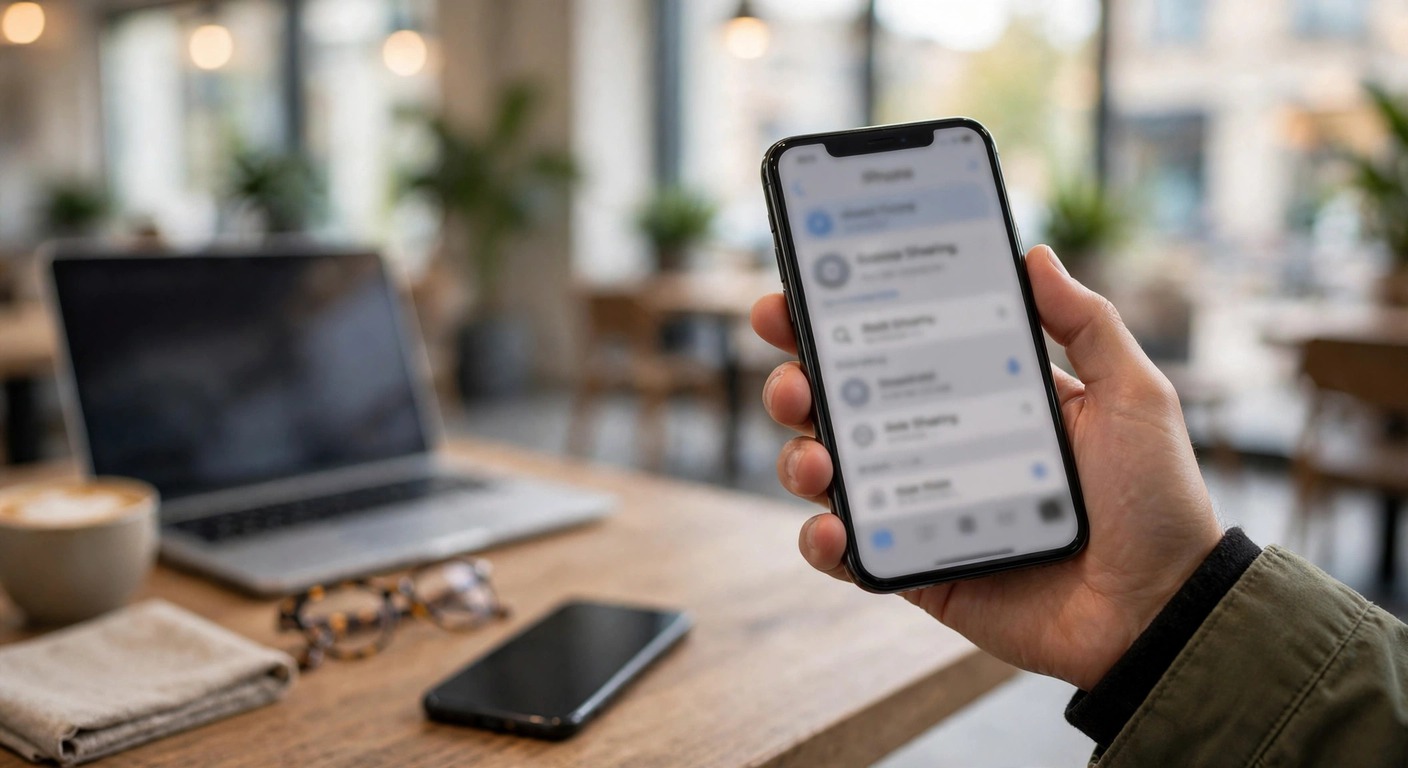
AirDrop Not Working? 12 Fixes That Work on iPhone, Mac, and iPad
Short Answer
AirDrop not working: first check that Wi-Fi and Bluetooth are on on both devices, set AirDrop receiving to Everyone for 10 Minutes, bring the devices close together, and restart both devices. In most cases, one of these four steps fixes AirDrop. If the receiver still does not appear, work through the fixes below in order. If you are facing other AirDrop issues, the common fixes are covered in the AirDrop problems hub.
AirDrop fails for small reasons far more often than for hardware faults. A wrong receiving setting, a turned off Bluetooth radio, a VPN, a Personal Hotspot, or an outdated system can each block a transfer. The good news is that most AirDrop problems have a clear fix once you know which setting to check.
This guide covers AirDrop not working on iPhone, Mac, and iPad, plus the direction specific cases that confuse most people: AirDrop not working from iPhone to Mac, from Mac to iPhone, and AirDrop not showing up at all. It also covers Waiting, Declined, and Failed messages, and AirDrop problems after an iOS update.
Check AirDrop in 60 Seconds
Run this quick check before you change anything else. It fixes the most common AirDrop problem, which is a receiving setting that blocks the sender.
- On both devices, turn Wi-Fi on and Bluetooth on.
- On the receiving device, set AirDrop to Everyone for 10 Minutes for the test.
- Unlock both devices and keep them awake and close together.
- Turn off Personal Hotspot and disconnect any VPN on both devices.
- Try the transfer again with a small photo.
If AirDrop works after this check, the problem was a setting, not your hardware. You can switch back to Contacts Only after the transfer if you prefer that setting for daily use.
Why Is AirDrop Not Working?
AirDrop uses Bluetooth to find nearby devices and Wi-Fi to move the file. If either radio is off, weak, or busy with another job, AirDrop cannot start. A receiving setting of Contacts Only also blocks anyone who is not in the receiver contacts list.
- AirDrop receiving is set to Receiving Off or Contacts Only.
- Wi-Fi or Bluetooth is off on one device.
- One device is locked, asleep, or too far away.
- Personal Hotspot or a VPN is using the Wi-Fi radio.
- Do Not Disturb or a Focus mode is hiding the AirDrop prompt.
- One device needs a software update.
- A Mac firewall is blocking incoming connections.
- One device is too old to support AirDrop with the other.
Why is AirDrop not working is therefore a settings question in most cases. Work through the fixes below from the easiest to the hardest. Stop as soon as AirDrop works again.
1. Check Your AirDrop Receiving Setting
Start on the receiving device. If receiving is off, the sender will not see the device at all. If it is set to Contacts Only, the sender must be in the receiver contacts with a matching phone number or email.
On iPhone or iPad, go to Settings, then General, then AirDrop. Choose Everyone for 10 Minutes for a test. On a Mac, open Control Center, click AirDrop, and choose Everyone for 10 Minutes.
Apple Support confirms the same controls: both devices need Wi-Fi and Bluetooth on, and the receiver chooses Contacts Only or Everyone for 10 Minutes. You can read the official steps in the Apple Support guide on how to use AirDrop on iPhone or iPad.
If you use Contacts Only every day, check that the sender contact card on the receiving device includes the sender Apple Account email or phone number. A missing detail can make Contacts Only fail even when the sender is a known contact.
2. Turn Wi-Fi and Bluetooth Off and On on Both Devices
Toggle both radios on both devices. A stuck Bluetooth scan is one of the most common reasons AirDrop not showing up happens. The toggle clears it without changing any saved settings.
- On iPhone or iPad, open Control Center and turn Wi-Fi and Bluetooth off, wait 10 seconds, then turn them back on.
- On a Mac, click the Wi-Fi and Bluetooth icons in the menu bar and toggle them off and on.
- Make sure Airplane Mode is off on both devices.
- Try the AirDrop transfer again.
Use Control Center or Settings to toggle the radios, not a quick shortcut that only disconnects. On iPhone, go to Settings, then Wi-Fi, and Settings, then Bluetooth, to confirm both show as on.
If Bluetooth keeps dropping on iPhone across many accessories, the problem may be wider than AirDrop. Test with a different accessory before you blame AirDrop.
If Wi-Fi itself is unstable or will not connect, fix the network first before you blame AirDrop. Restart your router and rejoin the network, then try AirDrop again.
3. Bring the Devices Close, Awake, and Unlocked
AirDrop works best when the devices are within a few feet of each other. Walls, cases, and distance weaken the Bluetooth discovery signal. Keep both screens on and both devices unlocked during the transfer.
- Place the devices side by side on a table.
- Unlock both devices and keep the screens awake.
- Remove a very thick metal case for the test if the signal is weak.
- For iOS 17 and later, you can also hold the tops of two iPhones together to start AirDrop.
If you move out of range during a large transfer, AirDrop on newer systems can keep sending over the internet when both devices are signed in to the same Apple Account. For a normal transfer, staying close is still the fastest and most reliable option.
4. Restart Both Devices
Restart the sender and the receiver. A restart clears temporary radio and system faults that a toggle does not fix. This step alone solves many reports of my AirDrop is not working after a long period without a restart.
- On iPhone, go to Settings, then General, then Shut Down, then turn the phone back on.
- On a Mac, click the Apple menu and choose Restart.
- After both devices restart, turn Wi-Fi and Bluetooth on again.
- Try the AirDrop transfer again with a small file.
5. Update iOS, iPadOS, and macOS
AirDrop bugs often disappear after an update. Apple fixes discovery and transfer bugs in routine updates, and older systems can fail to talk to newer systems. Update both devices to the latest version available for each device.
- On iPhone or iPad, go to Settings, then General, then Software Update.
- On a Mac, go to System Settings, then General, then Software Update.
- Install any update, then restart the device.
- Try AirDrop again after both devices are updated.
If AirDrop stopped working right after an update, see the iOS 26 section below. A new setting or a changed default can block AirDrop until you check it.
6. AirDrop Not Working on Mac
AirDrop not working on Mac has a few Mac-only causes. The Mac must be awake, unlocked, and discoverable. A firewall that blocks all incoming connections can also stop AirDrop from receiving files.
- On the Mac, open Finder and click AirDrop in the sidebar to open the AirDrop window.
- At the bottom of the AirDrop window, set Allow me to be discovered by to Everyone for 10 Minutes.
- Open Control Center on the Mac and confirm Wi-Fi and Bluetooth are on.
- Go to System Settings, then Network, then Firewall, and make sure Block all incoming connections is off.
- Make sure the Mac is awake and unlocked during the transfer.
If the Mac still does not appear, sign in to the same Apple Account on both devices for a test, or switch the Mac to Everyone for 10 Minutes. A Mac that is asleep, locked, or behind a strict firewall will not show up to a sender.
MacBook AirDrop not working is often the same firewall or discovery problem. The MacBook must be open and awake. A closed MacBook in clamshell mode with the screen off may not stay discoverable.
7. AirDrop Not Working From iPhone to Mac
AirDrop not working from iPhone to Mac is the most searched direction problem. It usually means the Mac is not discoverable, the Mac firewall is blocking the transfer, or the two devices are not close enough.
- On the Mac, open Finder, then AirDrop, and set discovery to Everyone for 10 Minutes.
- On the iPhone, open Photos, select a photo, tap Share, then tap AirDrop.
- Wait for the Mac to appear, then tap it.
- On the Mac, click Accept when the prompt appears.
- If the Mac does not appear, toggle Wi-Fi and Bluetooth off and on on both devices and try again.
Check that the Mac is signed in to an Apple Account and that the iPhone contact card, if you use Contacts Only, includes the right email or phone number. If the Mac still does not show up, restart both devices and try with the Mac unlocked and the AirDrop window open.
If you accepted a file on your iPhone but cannot find it, see our guide on how to find downloads on iPhone to check Photos and the Files app.
8. AirDrop Not Working From Mac to iPhone
AirDrop not working from Mac to iPhone often means the iPhone receiving setting is wrong or the iPhone screen locked during the transfer. The Mac side is usually fine once the iPhone is ready to receive.
- On the iPhone, go to Settings, then General, then AirDrop, and choose Everyone for 10 Minutes.
- Keep the iPhone unlocked with the screen on.
- On the Mac, Control-click the file, choose Share, then AirDrop.
- Tap the iPhone when it appears and tap Accept on the iPhone.
- If the iPhone does not appear, toggle Bluetooth off and on on the iPhone.
If the transfer starts but fails part way, keep the iPhone awake and close to the Mac. A locked screen or a move out of range can stop a large file transfer.
9. AirDrop Not Working on iPad
AirDrop not working on iPad follows the same rules as iPhone. The iPad needs Wi-Fi and Bluetooth on, an AirDrop receiving setting that allows the sender, and an unlocked, awake screen.
- On the iPad, go to Settings, then General, then AirDrop, and choose Everyone for 10 Minutes.
- Turn Wi-Fi and Bluetooth off and on.
- Restart the iPad.
- Check for a software update in Settings, then General, then Software Update.
iPad AirDrop not working between an iPad and a Mac is often a discovery problem. Open the AirDrop window in Finder on the Mac and keep the iPad unlocked while you send.
10. AirDrop Not Showing Up
AirDrop not showing up means the sender cannot find the receiver. The receiver is the device to fix first. Check receiving, radios, lock state, distance, and Focus mode on the receiver.
- Set the receiver to Everyone for 10 Minutes.
- Turn Wi-Fi and Bluetooth off and on on the receiver.
- Unlock the receiver and keep the screen on.
- Turn off Do Not Disturb or any Focus mode on the receiver.
- Move the devices next to each other.
- Restart the receiver if it still does not appear.
How to fix AirDrop not showing up is therefore a receiver checklist, not a sender checklist. If the receiver appears but the transfer fails, move to the Waiting, Declined, and Failed section below.
11. AirDrop Stuck on Waiting, Declined, or Failed
Different AirDrop messages point to different causes. Use this table to match the message to the fix.
| Message | Likely Cause | Try This First |
|---|---|---|
| Waiting | Receiver is locked, busy, or out of range | Unlock receiver, move closer, and tap Accept |
| Declined | Receiver tapped Decline or the prompt timed out | Send again and ask the receiver to tap Accept quickly |
| Failed | Connection dropped during transfer | Move closer, keep screens on, and send a smaller file |
| No People Found | No discoverable device nearby | Set receiver to Everyone and toggle radios |
| Not Available | AirDrop off, radio off, or device too old | Check receiving, Wi-Fi, Bluetooth, and compatibility |
Why does my AirDrop keep failing on large files? A large video or a large set of photos needs a stable connection for longer. Send one file first to test, keep both devices plugged in, and keep both screens on until the transfer finishes.
If AirDrop keeps failing only for one file type, check the file. A very large file, a damaged file, or a file type the receiving app cannot open can fail even when AirDrop itself works.
12. AirDrop Not Working After an iOS Update, iOS 26, or on iPhone 17
AirDrop not working on iPhone 17 and iOS 26 AirDrop not working reports often follow an update. An update can reset a setting, change a default, or leave a radio in a bad state until you restart.
- Restart the iPhone after the update.
- Go to Settings, then General, then AirDrop, and confirm the receiving setting.
- Check that Wi-Fi and Bluetooth are on after the update.
- Check for a follow-up update in Settings, then General, then Software Update.
- Try AirDrop with Everyone for 10 Minutes to rule out a Contacts Only problem.
On iOS 26.2 and later, Apple added an AirDrop code option for sharing with people who are not in your contacts. If you share with a non-contact and the prompt asks for a code, ask the receiver for the code shown on their device and enter it to finish the transfer.
VPN, Hotspot, Focus, and Screen Time: Hidden AirDrop Blockers
Some of the most common AirDrop gaps in other guides are the hidden blockers. These settings do not mention AirDrop, but they can still stop it.
- VPN: disconnect any VPN on both devices during the transfer. A VPN can route traffic in a way that breaks local discovery.
- Personal Hotspot: turn off Personal Hotspot on both devices. Hotspot uses the same Wi-Fi radio that AirDrop needs.
- Do Not Disturb and Focus: turn off Focus on the receiver, or the AirDrop prompt may be hidden.
- Screen Time or restrictions: check Settings, then Screen Time, then Content and Privacy Restrictions for limits on AirDrop or sharing.
- Low Power Mode: turn it off for the test if the transfer keeps stalling.
Personal Hotspot uses the same Wi-Fi radio, so turn it off during a transfer.
Bluetooth accessories can also interfere with discovery. The same restart steps help when a Bluetooth accessory will not connect, because both problems often trace back to a stuck Bluetooth scan.
Which Devices Support AirDrop?
AirDrop needs a compatible Apple device. Very old devices cannot use AirDrop with newer devices, and some older Macs need to use a legacy mode. If one device is much older than the other, check compatibility before you try more fixes.
If you are unsure which model you own, see our guide on what iPhone do I have to check your model before you compare it to the table.
| Device | AirDrop Support | Notes |
|---|---|---|
| iPhone 5 and later | Yes, iPhone to iPhone and iPhone to Mac | Update to the latest iOS the device supports |
| iPad 4 and later, iPad mini and later | Yes | Older iPads may not support all newer features |
| Mac from 2012 and later | Yes, with OS X Yosemite or later | Older Macs may need legacy discovery |
| Very old iPhone, iPad, or Mac | Limited or none | Update or use cable, email, or cloud sharing instead |
If your Mac is from 2012 or earlier, AirDrop may not work with a new iPhone at all. In that case, use a cable, iCloud Drive, or email to move the file.
If Nothing Works: Reset Network Settings and Check Your Apple Account
Use these last steps only after the fixes above. They change saved settings, so try them one at a time and test AirDrop after each step.
- On iPhone, go to Settings, then General, then Transfer or Reset iPhone, then Reset, then Reset Network Settings. This erases saved Wi-Fi passwords, so have them ready.
- On a Mac, forget the Wi-Fi network and join it again in System Settings, then Network, then Wi-Fi.
- Sign out of your Apple Account on the iPhone and sign back in, only if you know your password.
- Try AirDrop again with Everyone for 10 Minutes.
If AirDrop still fails on every device and every file, contact Apple Support. A hardware fault in the Wi-Fi or Bluetooth module is rare, but it can cause AirDrop to fail while other features still work.
FAQs About AirDrop Not Working
Why is AirDrop not working on my iPhone?
The most common causes are AirDrop receiving set to Contacts Only or Off, Wi-Fi or Bluetooth off, Personal Hotspot or VPN on, or the receiver locked or too far away. Set receiving to Everyone for 10 Minutes, toggle Wi-Fi and Bluetooth, and restart both devices.
Why is AirDrop not working from iPhone to Mac?
The Mac is usually not discoverable. Open Finder, then AirDrop on the Mac, set discovery to Everyone for 10 Minutes, keep the Mac awake and unlocked, and check that the Mac firewall is not blocking all incoming connections.
Why is my AirDrop not showing up?
AirDrop not showing up means the receiver is not discoverable. Check the receiver AirDrop setting, turn Wi-Fi and Bluetooth off and on, unlock the receiver, turn off Focus, and move the devices close together.
Why does my AirDrop keep failing or get stuck on Waiting?
Waiting means the receiver has not accepted yet. Keep the receiver unlocked and close, and ask the receiver to tap Accept quickly. Failed means the connection dropped, so move closer, keep screens on, and try a smaller file.
Does AirDrop need Wi-Fi and Bluetooth?
Yes. AirDrop needs both Wi-Fi and Bluetooth on, even if you are not connected to a Wi-Fi network. Bluetooth finds nearby devices, and Wi-Fi moves the file.
Can I use AirDrop without Wi-Fi?
You do not need to be joined to a Wi-Fi network, but Wi-Fi must be turned on. AirDrop creates its own direct wireless link between the devices.
Why is AirDrop not working after an iOS update?
An update can reset a setting or leave a radio in a bad state. Restart the iPhone, check Settings, then General, then AirDrop, confirm Wi-Fi and Bluetooth are on, and install any follow-up update.
Does AirDrop work with Android or Windows?
No. AirDrop works only between Apple devices such as iPhone, iPad, and Mac. For Android or Windows, use a cable, email, or a cloud sharing link instead.





2 Comments