
Apps Not Downloading on iPhone? 10 Fixes That Work (2026)
Short answer: Apps not downloading on iPhone usually means the App Store cannot finish the download because of a weak connection, low storage, an App Store outage, a payment problem, or a restriction. Check your internet first, then pause and resume the download. If it still will not start, restart your iPhone and check your storage and Apple ID payment method. If you are facing other iPhone issues, the iPhone problems hub covers the common fixes in one place.
Apps not downloading on iPhone is frustrating because the app icon sits on your Home Screen with a spinning circle or a Waiting label, and nothing seems to fix it. The good news is that the cause is usually simple, and you can fix it without losing your apps or data.
In this guide, you will learn why apps not downloading on iphone happens, and 10 fixes that work on iPhone 11, 12, 13, 14, 15, 16, and 17, including how to check the App Store status, pause and resume a download, free up storage, and fix payment and Screen Time problems.
What Does It Mean When Apps Are Not Downloading on iPhone?
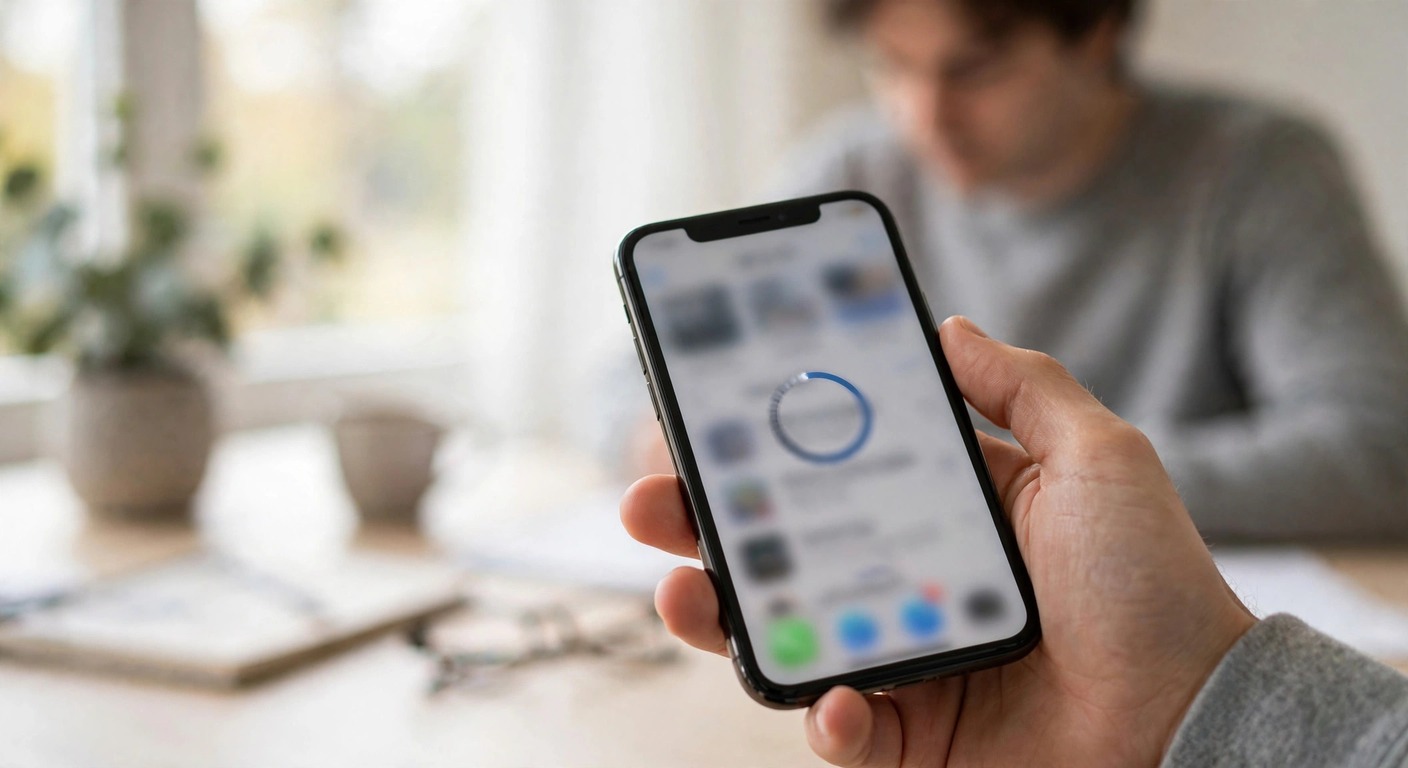
When apps are not downloading on iPhone, the App Store starts a download but cannot finish it, or the download never starts at all. You may see a greyed-out app icon, a Loading or Waiting label, a spinning progress circle that never moves, or a message that the app could not be downloaded.
Sometimes the download finishes but the app stays stuck on Installing. In all of these cases, the iPhone is waiting for something: a stable connection, free storage, App Store servers, or permission from your Apple ID, payment method, or Screen Time settings.
This problem can affect one app or every app. If only one app will not download, the problem is often that app, its size, or its compatibility with your iOS version. If no apps will download, the problem is usually your connection, the App Store itself, your storage, your Apple ID, or a restriction. The fixes below start with the fastest checks and move to the deeper fixes, so work through them in order.
Why Are Apps Not Downloading on My iPhone?
Apps stop downloading when one part of the download chain breaks. The App Store needs a stable internet connection to fetch the app, enough free storage to unpack it, a working Apple ID and payment method to authorize it, and permission from Screen Time and Content Restrictions. If any of these is missing or out of date, the download pauses or fails.
An App Store outage or a wrong date and time setting can also block downloads, even when everything else looks fine.
- A weak, unstable, or blocked Wi-Fi or mobile data connection.
- An Apple App Store outage or a temporary server problem.
- Too little free iPhone storage for the app and its temporary files.
- An expired, declined, or missing Apple ID payment method.
- Screen Time, Content Restrictions, or a purchase restriction blocking downloads.
- An outdated iOS version that the app no longer supports.
- A wrong date and time setting that stops the App Store from verifying the download.
- A stuck download that needs to be paused, resumed, or restarted.
How Do I Fix Apps Not Downloading on iPhone Quickly?
Start with the two fastest fixes. They solve many download problems, especially when the problem just started after a connection drop or a brief App Store glitch. If these do not work, move to the App Store status, storage, and account fixes below. You do not need to factory reset your iPhone for a download problem, and you should not pay for a repair before trying these steps.
Fix 1: Restart Your iPhone
- Press and hold the Side button and either Volume button until the power off slider appears, then drag the slider to turn off your iPhone. On an iPhone with a Home button, press and hold the Side button only.
- Wait 30 seconds, then press and hold the Side button until the Apple logo appears.
- Unlock your iPhone, open the App Store, and check whether the download resumes.
- If the app is still stuck, pause and resume it using the steps in the next section.
Fix 2: Check Your Internet Connection
- Open Settings, then Wi-Fi, and make sure you are connected to a stable Wi-Fi network with internet access.
- Move closer to your router, or try a different Wi-Fi network if one is available.
- Turn Airplane Mode on for 30 seconds, then turn it off: Swipe down from the top right corner to open Control Center, tap Airplane Mode, wait, then tap it again.
- Try downloading a small free app. If small apps work but large apps fail, your connection may be dropping during long downloads.
How Do I Check the App Store Server Status?
Before you change any settings, check whether Apple App Store servers are down. If the App Store is having an outage, no fix on your iPhone will help until Apple restores service. You can check the Apple System Status page in Safari. Look for App Store. A green dot means the service is working. A yellow or red dot means there is a problem. If there is an outage, wait and try again later.
- Open Safari and go to the Apple System Status page.
- Find App Store in the list and check its status dot.
- If App Store shows an issue, wait 30 to 60 minutes and try the download again.
- If App Store shows green, continue with the fixes below.
How Do I Pause and Resume the Download?
A stuck download often just needs to be paused and resumed. This forces the App Store to reconnect and restart the download from where it stopped. You can pause a download from the Home Screen or from the App Store. If the app icon is greyed out, press and hold it to see the download options.
- On the Home Screen, find the app that is stuck on Waiting or Loading.
- Press and hold the app icon, then tap Pause Download.
- Wait 10 seconds, press and hold the icon again, then tap Resume Download.
- If the download still will not move, press and hold the icon, tap Cancel Download, then download the app again from the App Store.
- If the app is not on the Home Screen, open the App Store, tap your profile icon, tap Purchased, find the app, and tap the download cloud icon.
How Do I Check Storage on iPhone?
Downloads fail when your iPhone does not have enough free space. iOS needs room for the app itself, plus temporary files during the install. As a rule, keep at least 1 GB free, and more is better for large games and video apps. If your storage is almost full, the download may start and then stop without a clear error. Clearing the app cache on iPhone can also free space when storage is tight.
- Go to Settings, then General, then iPhone Storage.
- Check the free space at the top. If you have less than 1 GB free, you need to free up space.
- Delete apps you no longer use, or offload unused apps: In iPhone Storage, tap an app you do not use, then tap Offload App or Delete App.
- Delete old photos, videos, and downloads, or back them up to iCloud Photos and then delete them from the iPhone.
- Restart your iPhone and try the download again.
If you are always low on storage, turn on Offload Unused Apps in Settings, then App Store, so iOS automatically removes apps you do not use while keeping their data. For more help with iPhone storage, see our guide on how to find downloads on iPhone.
How Do I Check My Apple ID Payment Method?
The App Store can block downloads, even free downloads, if your Apple ID payment method has a problem. An expired card, a declined payment, or an unpaid balance can stop all downloads until you fix it. This is a common cause when downloads worked before and suddenly stopped after a card expired.
- Go to Settings, then tap your name at the top, then tap Payment and Shipping.
- Sign in with your Apple ID if asked, then check your payment method. Update an expired card or add a valid payment method.
- If you see an unpaid balance, pay it, then try the download again.
- If you do not want to add a card, you can set the payment method to None if Apple offers it in your country, but you still need a valid Apple ID.
- Restart the App Store and try the download again.
How Do I Check Screen Time and Restrictions?
Screen Time and Content Restrictions can block app downloads, especially on a child iPhone or a managed device. If installing apps is set to Do Not Allow, the App Store will not download new apps, and the Get or Install button may be greyed out. Check these settings even if you did not set them yourself, because a family organizer or a school profile can turn them on.
- Go to Settings, then Screen Time.
- Tap Content and Privacy Restrictions. If it is on, tap iTunes and App Store Purchases.
- Make sure Installing Apps is set to Allow. Also check that In-App Purchases is set to Allow if you need it.
- Go back to Content and Privacy Restrictions, tap Allowed Apps, and make sure App Store is turned on.
- If you use a Screen Time passcode, enter it when asked. If you do not know the passcode, ask the family organizer or the person who set it.
- Try the download again.
How Do I Sign Out and Back Into the App Store?
If the App Store is signed in with an old or glitched session, downloads can stall. Signing out and back in forces the App Store to re-verify your Apple ID and refresh your download queue. Before you sign out, make sure you know your Apple ID password and that you can complete two-factor authentication if asked.
- Open the App Store, tap your profile icon at the top right.
- Scroll to the bottom and tap Sign Out.
- Restart your iPhone.
- Open the App Store, tap Sign In, and sign in with your Apple ID.
- Try the download again.
How Do I Update iOS and Check Date and Time?
An outdated iOS version can stop new apps from downloading, because the app may require a newer iOS version. A wrong date and time can also block the App Store, because the iPhone cannot verify the secure connection. Update iOS first, then check that your date and time are set to automatic.
- Go to Settings, then General, then Software Update.
- If an update is available, tap Download and Install. Keep your iPhone charged and connected to Wi-Fi.
- After the update, restart your iPhone and try the download again.
- Go to Settings, then General, then Date and Time, and turn on Set Automatically.
- If the date and time are still wrong, turn Set Automatically off, set the correct date and time manually, then turn it back on.
How Do I Reset Network Settings as a Last Resort?
Use this fix only if nothing else worked. Resetting network settings erases saved Wi-Fi networks and passwords, cellular settings, and VPN settings. It does not delete your apps, photos, or files. After the reset, you will need to reconnect to Wi-Fi and try the download again.
- Go to Settings, then General, then Transfer or Reset iPhone, then Reset.
- Tap Reset Network Settings and confirm with your passcode.
- Wait for your iPhone to restart.
- Reconnect to Wi-Fi: Go to Settings, then Wi-Fi, and enter your Wi-Fi password.
- Open the App Store and try the download again.
What Should I Do If Apps Still Will Not Download on iPhone?
If you have tried every fix above and apps still will not download, use this table to match your symptom to the most likely cause, then retry the matching fix. The exact message and behavior can vary by iPhone model, iOS version, and App Store region. If an app downloads but crashes when you open it, follow the steps to fix iPhone apps crashing. If the problem persists after all fixes, contact Apple Support.
| Symptom | Likely cause | What to try first |
|---|---|---|
| One app will not download. | App-specific problem or outdated iOS. | Pause and resume, then update iOS. |
| Every app will not download. | Network, App Store outage, or Apple ID problem. | Check internet, App Store status, and sign out and back in. |
| App stuck on Waiting or Loading. | Stuck download or weak connection. | Pause and resume, then restart iPhone. |
| Get button is greyed out or does not respond. | Screen Time restriction or payment problem. | Check Screen Time and your payment method. |
| Download fails with almost full storage. | Too little free space. | Free up storage in iPhone Storage. |
How Can I Stop Apps From Failing to Download?
Once downloads work again, a few habits can prevent the problem from coming back. Most download failures come from low storage, an outdated iOS, or a payment or restriction problem that builds up over time.
- Keep at least 2 GB of free storage. Delete apps, photos, or videos you no longer need.
- Install iOS updates when they appear. Apps often require the latest iOS version.
- Keep your Apple ID payment method up to date, even if you only download free apps.
- Review Screen Time and Content Restrictions after a family member changes them.
- Download large apps over strong Wi-Fi instead of weak mobile data.
- Restart your iPhone once a week to clear temporary glitches.
Apps not downloading on iPhone is usually a small settings or connection problem, not a broken iPhone. Work through the fixes in order, from the fastest restart and internet check to the last resort network reset, and most downloads start again. If the problem persists, contact Apple Support for help with your Apple ID or device.
Frequently Asked Questions About Apps Not Downloading on iPhone
Why are apps not downloading on my iPhone?
Apps usually stop downloading because of a weak internet connection, low storage, an Apple ID payment problem, Screen Time restrictions, an outdated iOS version, or a stuck download. Start with a restart and an internet check, then work through the fixes in this guide.
Why is my app stuck on Waiting?
An app stuck on Waiting usually means the download paused or lost its connection. Press and hold the app icon, tap Pause Download, wait 10 seconds, then tap Resume Download. If it still will not move, restart your iPhone and try again.
Do I need a payment method to download free apps?
The App Store can ask for a valid payment method even for free apps, and a declined or expired card can block downloads. Go to Settings, tap your name, then Payment and Shipping, and update your payment method or set it to None if Apple offers that option in your region.
Why does the App Store say I cannot download apps?
This message usually comes from Screen Time or Content Restrictions, an age restriction, or an Apple ID problem. Check Settings, then Screen Time, then Content and Privacy Restrictions, and make sure Installing Apps is set to Allow.
Will signing out of the App Store delete my apps?
No. Signing out of the App Store does not delete your apps, photos, or files. It only ends your App Store session. Sign back in with the same Apple ID and your apps will still be on your iPhone.
Will resetting network settings delete my apps or photos?
No. Resetting network settings only erases saved Wi-Fi networks and passwords, cellular settings, and VPN settings. Your apps, photos, and files stay on your iPhone. You will need to reconnect to Wi-Fi after the reset.



3 Comments