
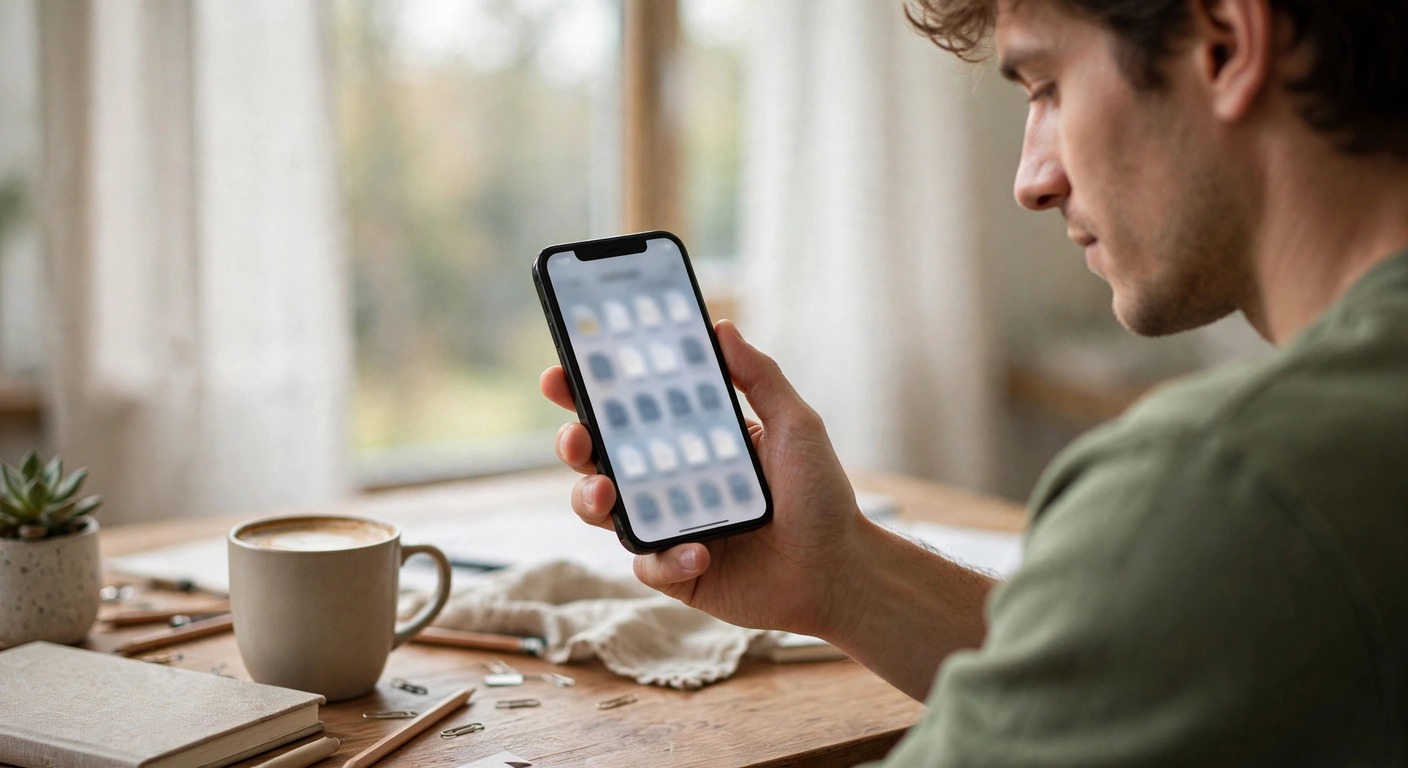
How to Find Downloads on iPhone (2026 Guide)
Short answer: How to find downloads on iPhone? They live in the Files app. Open Files, tap Browse at the bottom, then tap Downloads under Locations. That folder holds your Safari downloads. Chrome keeps its own downloads inside the Chrome app, and media like music or Netflix videos live inside their respective apps.
Where Do Downloads Go on iPhone?
Unlike a computer, the iPhone has no single “Downloads” folder that catches everything. Each app stores its downloads in its own space:
| Download type | Where to find it |
|---|---|
| Safari downloads (PDFs, files) | Files app > Browse > Downloads |
| Chrome downloads | Chrome app > three-dot menu > Downloads |
| Photos and videos | Photos app |
| Music | Apple Music app > Library |
| Netflix / streaming videos | Inside the Netflix app > Downloads |
| Email attachments | Mail app, or save to Files first |
If you downloaded it from Safari, the Files app is your answer. For everything else, check the app you downloaded it with.
How to Find Safari Downloads in the Files App
Safari is the default browser, so most iPhone downloads start here. Every Safari download lands in the Files app’s Downloads folder.
- Open the Files app (blue folder icon on your Home Screen).
- Tap Browse at the bottom of the screen.
- Under Locations, tap Downloads.
- Your downloaded files are listed here. Tap any file to open or preview it.
If you do not see a Downloads folder, check both locations: it may live under iCloud Drive > Downloads or On My iPhone > Downloads, depending on your Safari setting (see below). You can also pull down on the Browse screen and type the filename into the search bar to find any file instantly.
Quick tip: long-press a file to rename it, share it, move it to another folder, or delete it.
How to Change Where Safari Saves Downloads
By default, Safari saves to iCloud Drive, which syncs your downloads across devices but also uses iCloud storage. You can switch it to local storage instead.
On iOS 18 or later:
- Go to Settings > Apps > Safari.
- Tap Downloads.
- Choose iCloud Drive, On My iPhone, or Other (to pick a custom folder).
On iOS 17 or earlier:
- Go to Settings > Safari (it sits directly in the main Settings list).
- Tap Downloads.
- Choose iCloud Drive or On My iPhone.
After changing this, new downloads go to the new location. Files you already downloaded stay where they were.
How to Find Chrome Downloads on iPhone
Chrome does not use the Files app’s Downloads folder. It keeps downloads inside the browser.
- Open the Chrome app.
- Tap the three-dot menu (bottom right).
- Tap Downloads.
- Your downloaded files appear here. Tap one to open it, or tap the share icon to save it to the Files app.
The same pattern applies to Firefox, Edge, and Brave: look for Downloads in each browser’s menu.
Where Are My Downloaded Photos, Music, and Videos?
Media downloads do not go to the Files app at all:
- Photos and videos saved from Safari, Messages, or WhatsApp land in the Photos app, usually in Recents or the relevant album.
- Apple Music downloads live in the Music app under Library > Downloaded.
- Spotify downloads are inside the Spotify app under Your Library, and only playable in Spotify.
- Netflix, Disney+, and YouTube Premium downloads live inside each app’s own Downloads section and cannot be moved to Files.
If you downloaded a file and it is “gone,” ask yourself which app handled the download, then look inside that app.
Why Is My Downloads Folder Empty?
A few common reasons:
- Wrong location. Check both iCloud Drive > Downloads and On My iPhone > Downloads in the Files app. Your Safari setting decides which one is active.
- It was a different browser. Chrome and other browsers keep their own download lists.
- It was media. Photos go to the Photos app, not Files.
- The download never finished. If Safari was closed mid-download, the file may be incomplete or missing. Redownload it.
- Files app is hidden. If you deleted the Files app, reinstall it free from the App Store.
How to Delete Downloads to Free Up Space
Downloaded files quietly eat storage. To clean them out:
- Open Files > Browse > Downloads.
- Tap the three-dot menu (top right) and tap Select.
- Tap the files you want gone, then tap the trash icon.
- To permanently free the space, go to Browse > Recently Deleted and delete them there too (Files keeps deletions for 30 days otherwise).
For a bigger cleanup, check our guide on clearing app cache, bloated apps are usually a bigger storage hog than downloads.
Where is the Downloads folder on iPhone?
In the Files app. Open Files, tap Browse at the bottom, then tap Downloads under Locations. It may be under iCloud Drive or On My iPhone depending on your Safari setting.
Why can’t I find a file I just downloaded?
Check three places: the Files app’s Downloads folder (for Safari), the browser’s own Downloads menu (for Chrome), and the Photos app (for images and videos). Also try searching the filename in the Files app.
Do iPhone downloads use iCloud storage?
Only if Safari is set to save downloads to iCloud Drive (the default). Switch to On My iPhone under Settings > Apps > Safari > Downloads to keep them local instead.
Where do PDF downloads go on iPhone?
PDFs downloaded in Safari go to the Files app’s Downloads folder. From there you can move them anywhere, mark them up, or share them.
How do I download a file on iPhone from Safari?
Tap the download link. Safari shows a download icon in the address bar; tap it to see progress. When finished, the file is in Files > Browse > Downloads.
Can I change the download location per file?
Yes. When the download prompt appears in Safari, you can sometimes choose a destination. Otherwise, move the file after downloading: long-press it in Files and tap Move.
How do I stop Safari downloads from syncing to iCloud?
Go to Settings > Apps > Safari > Downloads (iOS 18+) or Settings > Safari > Downloads (iOS 17 or earlier) and select On My iPhone instead of iCloud Drive.
The Bottom Line
On iPhone, “where are my downloads” depends on which app downloaded them. Safari downloads live in the Files app under Browse > Downloads. Chrome keeps its own list inside the browser. Photos, music, and streaming videos stay inside their apps. Once you know which app handled the download, finding the file takes ten seconds, and the Files app’s search bar finds anything that slipped through the cracks.




3 Comments