SIM Failure on iPhone? 8 Fixes That Work (2026)
Short answer: The SIM failure iPhone error means your phone cannot read the SIM card, so calls, texts, and mobile data stop working. Fix it by restarting your iPhone, toggling Airplane Mode, removing and reinserting the SIM card, and checking for a carrier settings update under Settings → General → About. These steps resolve the error in most cases.
What Does “SIM Failure” Mean on iPhone?
Your iPhone shows SIM Failure, Invalid SIM, or No SIM when it cannot communicate with the SIM card in the tray. Without that handshake, the phone cannot connect to your carrier’s network: no calls, no SMS, no mobile data. Wi-Fi still works, which is why the phone feels half-alive.
Common causes, from most to least likely:
- The SIM shifted slightly in its tray or has dirty contacts
- A temporary software glitch after an iOS update
- Outdated carrier settings
- A damaged or very old SIM card
- A carrier network outage in your area
- Hardware failure in the SIM reader (rare)
Work through the fixes below in order. Each takes a minute or two, and most SIM failures are fixed by step 3.
Fix 1: Restart Your iPhone
The oldest fix in the book works here more often than you would expect, because a restart re-initializes the baseband connection to the SIM.
- Face ID iPhones: hold the Side button + either Volume button, slide to power off, wait 30 seconds, then hold the Side button to turn it back on.
- Touch ID iPhones: hold the Side (or Top) button, slide to power off, then turn it back on.
Check whether the error is gone before moving on.
Fix 2: Toggle Airplane Mode
Airplane Mode forces the phone to drop and re-establish its cellular connection without a full restart:
- Open Control Center (swipe down from the top-right corner, or up from the bottom on Touch ID models).
- Tap the airplane icon to turn Airplane Mode on. Wait 30 seconds.
- Tap it again to turn it off and let the phone reconnect.
Fix 3: Remove and Reinsert the SIM Card
A slightly misaligned or dusty SIM is the single most common physical cause.
- Power off your iPhone first.
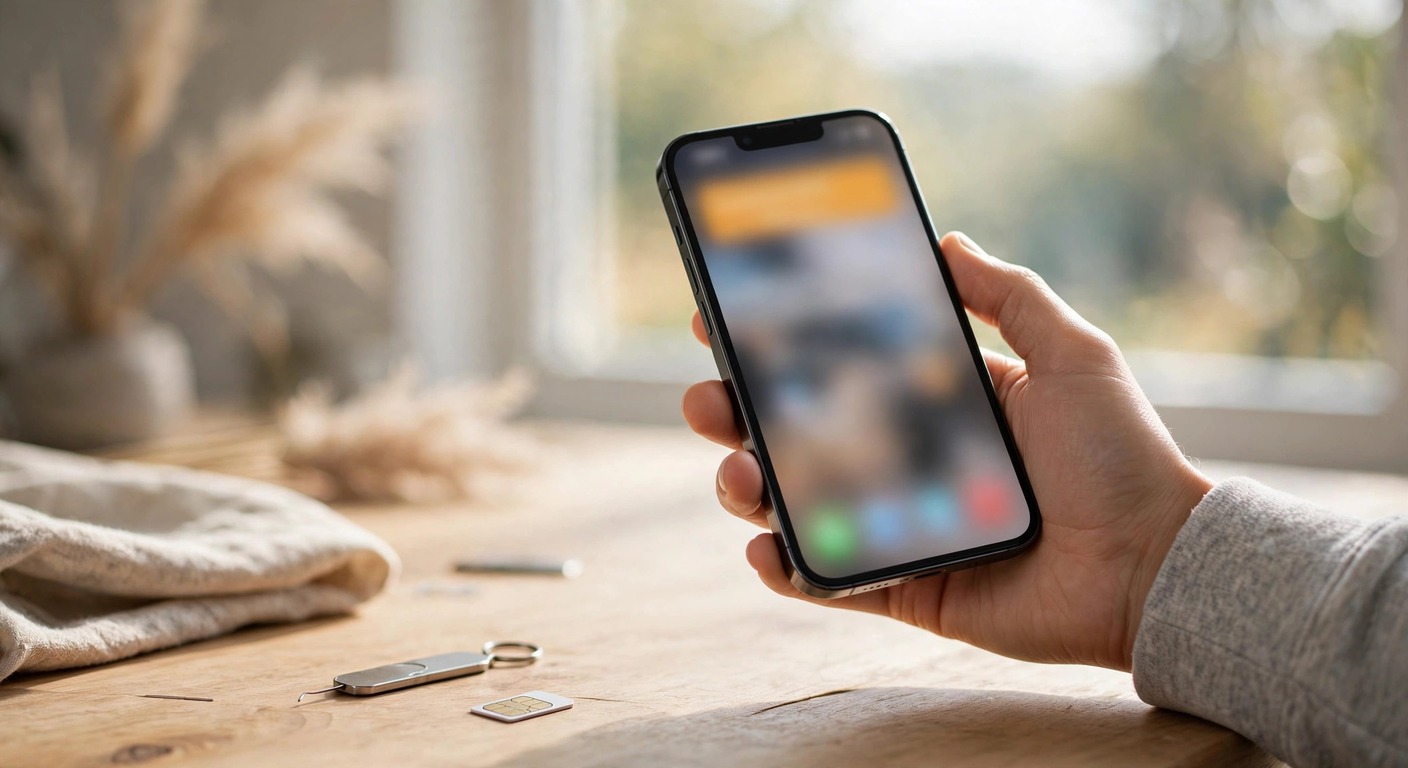
- Find the SIM tray on the side of the phone and insert a SIM ejector tool (or a straightened paperclip) into the small hole until the tray pops out.
- Remove the SIM and inspect it: look for scratches, cracks, or dirt on the gold contacts. Wipe the contacts gently with a dry, lint-free cloth.
- Place the SIM back in the tray in the correct orientation (it only fits one way), push the tray in firmly until it clicks, and power the phone on.
If the tray feels loose or the SIM wobbles inside it, that looseness alone can cause intermittent SIM Failure errors.
Fix 4: Check for a Carrier Settings Update
Carriers push small configuration updates that your iPhone needs to stay connected. iOS usually installs them silently, but sometimes one gets stuck:
- Connect to Wi-Fi.
- Go to Settings → General → About.
- Wait about 15 seconds on this screen. If a carrier update is available, a prompt appears: tap Update.
No prompt means your carrier settings are current.
Fix 5: Update iOS
Apple regularly fixes cellular and baseband bugs in iOS updates, and SIM errors sometimes appear right after a major update that introduced a regression fixed in the next point release.
- Go to Settings → General → Software Update.
- If an update is available, tap Download and Install (use Wi-Fi and keep the phone charged).
Fix 6: Reset Network Settings
This clears all cellular, Wi-Fi, Bluetooth, and VPN settings back to defaults, which resolves corruption in the network stack that a restart cannot touch.
- Go to Settings → General → Transfer or Reset iPhone → Reset.
- Tap Reset Network Settings and enter your passcode to confirm.
Warning: this erases saved Wi-Fi passwords, Bluetooth pairings, and VPN configurations. Your photos, apps, and other data are untouched, but you will need to rejoin Wi-Fi networks afterward.
Fix 7: Test the SIM in Another Phone
This step tells you whether the problem is the SIM or your iPhone:
- Put your SIM in a different phone. If the error follows the SIM, the card is damaged: ask your carrier for a free replacement (most carriers replace faulty SIMs at no charge).
- Put a different SIM in your iPhone. If the error persists with a known-good SIM, the problem is your iPhone’s SIM reader or software, move to Fix 8.
If your iPhone uses eSIM instead of a physical SIM, contact your carrier to re-push the eSIM profile rather than swapping cards.
Fix 8: Contact Your Carrier, Then Apple
If nothing above worked:
- Call your carrier (from another phone or over Wi-Fi calling). Ask them to check for an outage in your area, verify your account is active, and re-provision your line. Account suspensions and provisioning errors look exactly like SIM Failure.
- If the carrier confirms everything is fine on their end, contact Apple Support or visit an Apple Store. A dead SIM reader is a hardware repair.
Quick-Reference Table
| Fix | Time needed | Data risk |
| Restart iPhone | 2 minutes | None |
| Toggle Airplane Mode | 1 minute | None |
| Reseat the SIM card | 3 minutes | None |
| Carrier settings update | 1 minute | None |
| Update iOS | 10-20 minutes | None (back up first anyway) |
| Reset Network Settings | 2 minutes | Erases Wi-Fi passwords and Bluetooth pairings |
| Test SIM in another phone | 5 minutes | None |
| Contact carrier / Apple | Varies | None |
The Bottom Line
SIM Failure on iPhone is almost always a connection problem, not a dead phone. Reseat the SIM card, restart, and check for a carrier settings update, and you will fix the large majority of cases in under five minutes. Reset Network Settings is the strongest software fix, and the SIM-swap test tells you definitively whether to blame the card or the phone. Only when all of that fails is it time to call the carrier or visit Apple.
What causes SIM failure on iPhone?
The most common causes are a misaligned or dirty SIM card, a software glitch, outdated carrier settings, a damaged SIM, or a carrier outage. Hardware failure in the SIM reader is possible but rare.
Will I lose data if I reset network settings?
No personal data is lost. Reset Network Settings only erases Wi-Fi passwords, Bluetooth pairings, VPN settings, and cellular preferences. Photos, apps, and messages are untouched.
Why does my iPhone say SIM failure after an iOS update?
Updates can temporarily disrupt the baseband or carrier configuration. Restarting the phone and checking for a carrier settings update (Settings → General → About) fixes it in most cases.
Can a damaged SIM card cause intermittent signal?
Yes. A cracked or worn SIM can work sometimes and fail at other times, especially as the phone heats up. If the error comes and goes, suspect the card and get a free replacement from your carrier.
Does SIM failure affect Wi-Fi?
No. Wi-Fi, Bluetooth, and everything else on the phone keep working. Only carrier services (calls, SMS, mobile data) stop.
My iPhone uses eSIM and shows SIM failure. What do I do?
Restart the phone and check for carrier and iOS updates first. If it persists, contact your carrier and ask them to delete and re-push your eSIM profile, which is the eSIM equivalent of reseating a physical SIM.
How do I know if it is a carrier outage?
Check your carrier’s status page or social media accounts, or ask someone on the same network nearby whether their service works. If the whole area is down, no phone-side fix will help, you just wait.