How to Share an Instagram Post
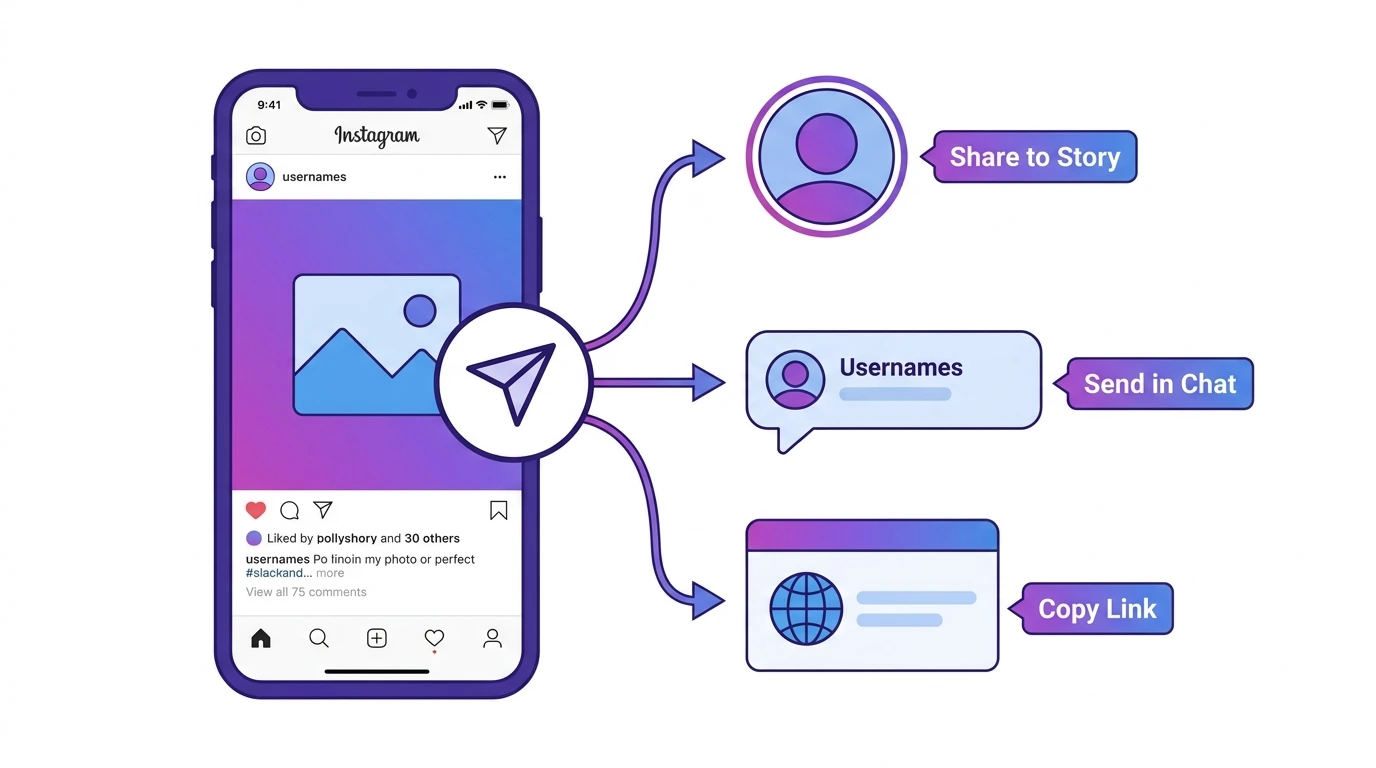
Instagram gives you several ways to share posts depending on whether you want to share them to your Story, send them to someone privately, or share them outside of Instagram entirely.
How to Share an Instagram Post to Your Story
Sharing a post to your Story is the fastest way to show your followers content you want to highlight.
Steps:
- Open the post you want to share
- Tap the paper plane icon below the post
- Select Add post to your story
- Customize it with stickers, text, or drawings if you want
- Tap Your Story to share
The shared post appears as a sticker on your Story. Anyone who taps it is taken to the original post.
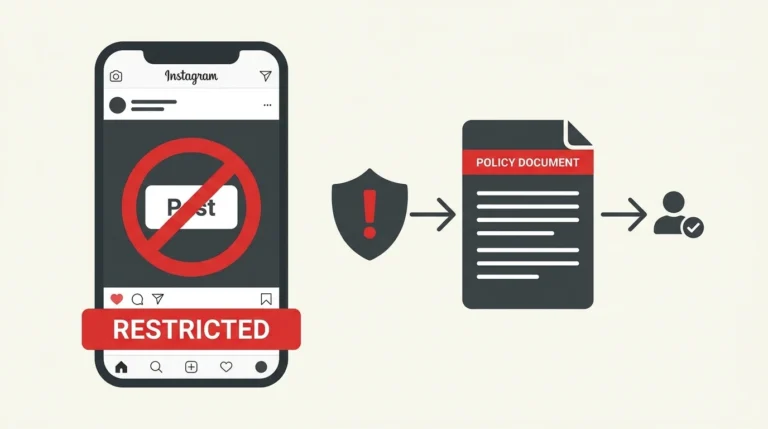
Note: You can only share posts to your Story if the original account is public or if you are tagged in the post. Posts from private accounts cannot be shared this way.
How to Share an Instagram Post via Direct Message
Steps:
- Open the post you want to share
- Tap the paper plane icon
- Search for the person or group you want to send it to
- Tap Send
The recipient receives the post as a message in their Instagram inbox. They can tap it to view the full post.
How to Share an Instagram Post Link
You can copy a direct link to any public post and share it outside of Instagram in a text message, email, or another platform.
Steps:
- Open the post
- Tap the three-dot menu in the top right corner
- Select Copy link
Paste the link wherever you want to share it. Anyone with the link can view the post as long as the account is public.
How to Share Your Own Post to Other Platforms
When creating or after publishing a post, Instagram allows you to cross-share to connected platforms.
To share during posting:
- On the final screen before tapping Share, toggle on the platforms you want to share to (Facebook, for example)
To share after posting:
- Open your published post
- Tap the paper plane icon
- Select the platform option if available, or use “Copy link” to paste it manually
Frequently Asked Questions
Why can I not share someone’s Instagram post to my Story?
The share-to-story option is only available if the account is public or if you are tagged in the post. Private account posts cannot be shared to Stories.
Can I share a post from a private Instagram account?
No. Posts from private accounts can only be seen by their approved followers. The sharing and link options are restricted for private account content.
Does the original poster know when I share their post?
If you share their post to your Story, Instagram may notify them depending on their notification settings. Sharing via DM or copying a link does not typically trigger a notification.
Can I share an Instagram post to WhatsApp or other apps?
Yes. Copy the post link and paste it into WhatsApp, a text message, or any other app. The recipient can open the link if the account is public.
Can I share a Reel the same way as a regular post?
Yes. Reels use the same paper plane sharing icon and support all the same sharing methods: story, DM, and link copy.
Conclusion
Instagram offers multiple sharing methods to suit different situations. Share to your story to amplify content for your followers, use direct messages for private sharing, or copy the link to share outside the platform.
For a full overview of what you can do with Instagram posts, visit our Complete Guide to Instagram Posts.