Complete Guide to Instagram Posts
Instagram posts are the heart of every successful Instagram account. Whether you’re sharing photos, videos, Reels, or carousels, understanding how to create, manage, and organize your content helps you build a stronger presence and keep your profile looking its best.
In this complete guide to Instagram posts, you’ll learn everything from publishing your first post to editing captions, archiving content, deleting posts, reposting, scheduling future uploads, and managing post visibility. Each section includes a brief overview and links to detailed step-by-step tutorials, so you can quickly find the instructions you need.
What Counts as an Instagram Post
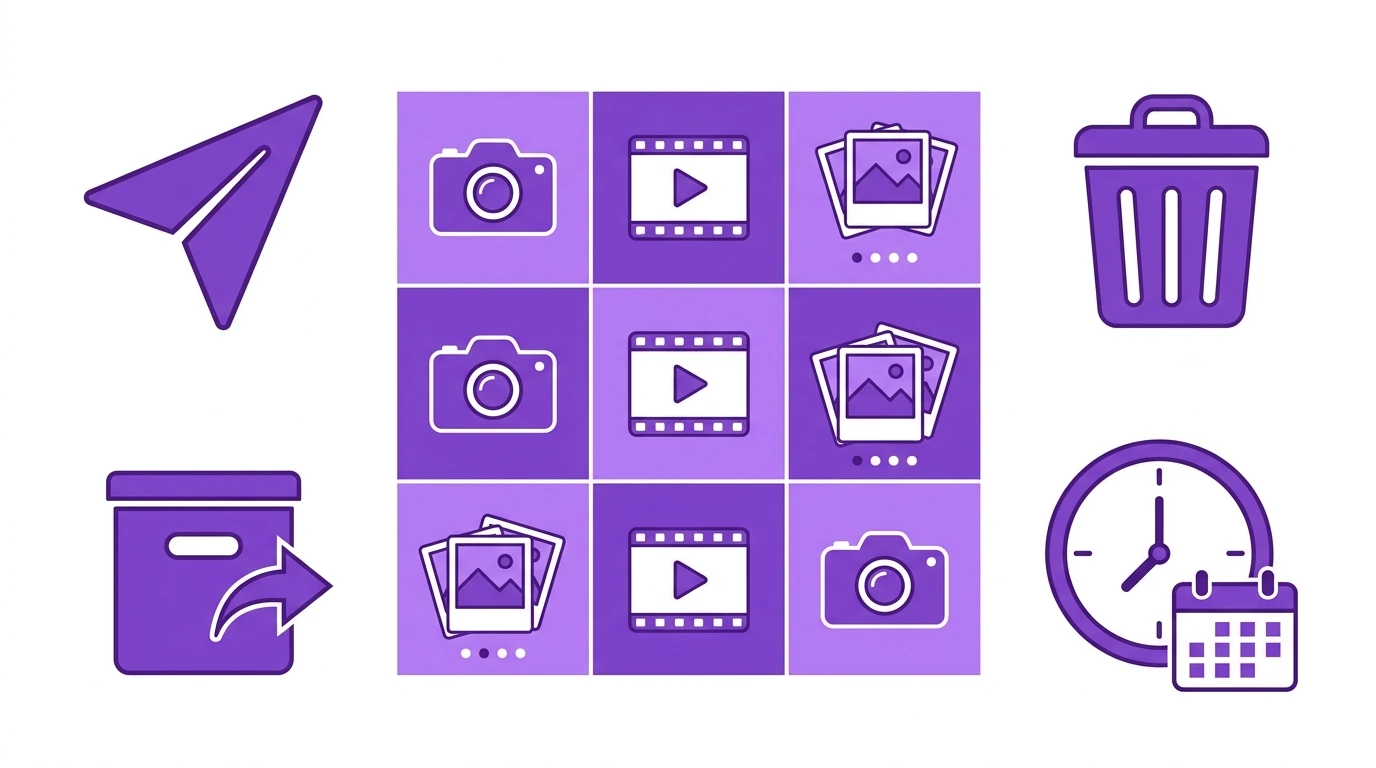
An Instagram post is any piece of content you share to your profile grid. This includes:
- Photo posts: Single images shared to your feed
- Video posts: Short- or long-form videos shared to your grid
- Carousel posts: Multiple photos or videos combined in a single swipeable post
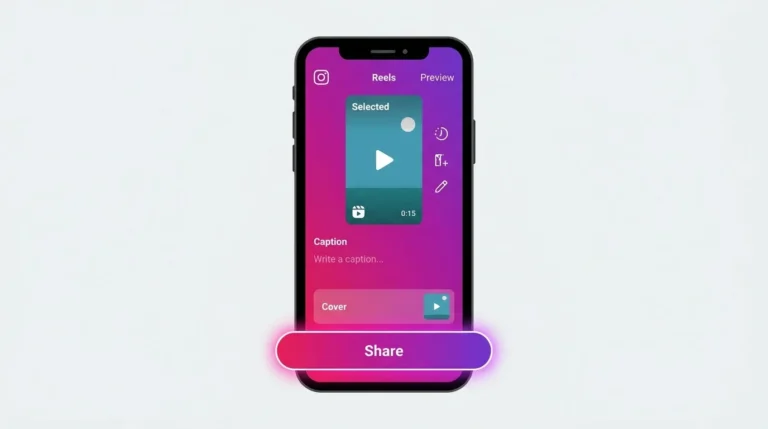
- Reels: Short vertical videos that appear both on your profile and in the Reels tab
Stories and live videos are separate from posts and do not appear on your profile grid permanently.
How to Create an Instagram Post
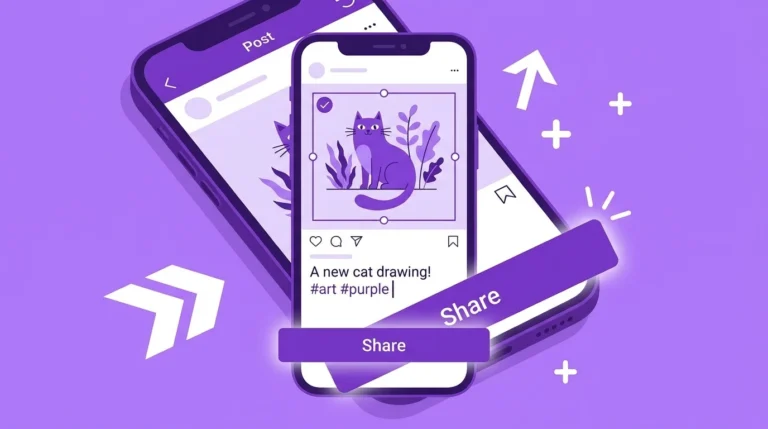
Creating a post on Instagram takes only a few steps. Open the Instagram app, tap the plus icon at the bottom of the screen, select your photo or video from your camera roll, apply any edits or filters, write a caption, add hashtags or a location if needed, and tap Share.
Your post will appear on your profile grid immediately after sharing. For a complete walkthrough including caption tips, hashtag strategy, and accessibility settings, see our guide on How to Create an Instagram Post.
How to Delete an Instagram Post
You can delete any post from your Instagram profile at any time. Open the post, tap the three-dot menu in the top right corner, and select Delete. Instagram will ask you to confirm before permanently removing the post.
Deleted posts cannot be recovered unless you previously archived them or downloaded your data.
For full deletion instructions, see our guide on How to Delete an Instagram Post.
How to Archive an Instagram Post
Archiving removes a post from your public profile without deleting it. Your followers can no longer see the post, but it remains saved in your archive where only you can access it.
To archive a post, open it, tap the three-dot menu, and select Archive. You can restore archived posts to your profile at any time.
For complete archiving instructions, see our guide on How to Archive an Instagram Post.
How to Unarchive an Instagram Post
If you want to restore an archived post to your public profile, go to your profile, tap the three-line menu, select Archive, find the post you want to restore, tap the three-dot menu on that post, and select Show on Profile.
The post returns to your grid in its original position based on when it was originally shared. For step-by-step instructions, see our guide on How to Unarchive an Instagram Post.
How to Hide Instagram Posts
Instagram gives you options to control who sees your posts. You can switch your account to private so only approved followers can view your content, or you can hide specific posts from certain users without deleting or archiving them.
For a complete breakdown of hiding options, see our guide on How to Hide Instagram Posts.
How to Share an Instagram Post
You can share Instagram posts in several ways: to your Stories, via Direct Message, or through an external link. Open any post, tap the paper plane icon below it, and choose how you want to share it.
Sharing options depend on the post owner’s privacy settings. Some posts from private accounts cannot be shared externally.
For detailed sharing instructions, see our guide on How to Share an Instagram Post.
How to Repost an Instagram Post
Instagram does not have a built-in repost button for feed posts. To repost someone else’s content, you can share it to your Stories directly from the post, or use a third-party reposting app for grid reposts, always with proper credit to the original creator.
For full reposting options and best practices, see our guide on How to Repost an Instagram Post.
How to Schedule Instagram Posts
Scheduling allows you to plan and publish posts automatically at a future time. Instagram supports native scheduling through Meta Business Suite for business and creator accounts.
You can also schedule posts using approved third-party tools such as Later, Buffer, or Hootsuite. For complete scheduling instructions, see our guide on How to Schedule Instagram Posts.
Common Instagram Posting Problems
Sometimes Instagram prevents you from posting. Common causes include a poor internet connection, an outdated app, a temporary account restriction, or a violation of Instagram’s content policies.
If you cannot post on Instagram, start by checking your connection, updating the app, and reviewing any recent notifications from Instagram about your account.
For a full troubleshooting guide, see our article on Why Can’t I Post on Instagram. If Instagram has restricted your ability to post due to a policy violation, see our guide on Banned From Posting on Instagram.
Frequently Asked Questions
How many photos can I include in one Instagram post?
Instagram carousel posts support up to 20 photos or videos in a single post.
Can I edit an Instagram post after publishing it?
You can edit the caption, location tag, and alt text after publishing. You cannot replace the photo or video in an existing post.
Does deleting an Instagram post remove it from everyone’s feed?
Yes. Once deleted, the post is removed from your profile, from the feeds of your followers, and from any location or hashtag pages where it appeared.
What is the difference between archiving and deleting an Instagram post?
Archiving hides the post from your public profile but preserves it privately. Deleting permanently removes the post. Archived posts can be restored; deleted posts cannot.
Can I post on Instagram from a desktop computer?
Yes. Instagram allows you to create and publish posts from instagram.com on a desktop browser, though some features such as music and certain sticker options are only available in the mobile app.
Conclusion
Managing your Instagram posts effectively means knowing what options are available and when to use each one. Whether you need to create, remove, hide, share, or automate your posts, Instagram provides tools for every situation.
Use this guide as your starting point and refer to the individual articles in this cluster for detailed instructions on each post-management task.