How to Deactivate Your Instagram Account Temporarily
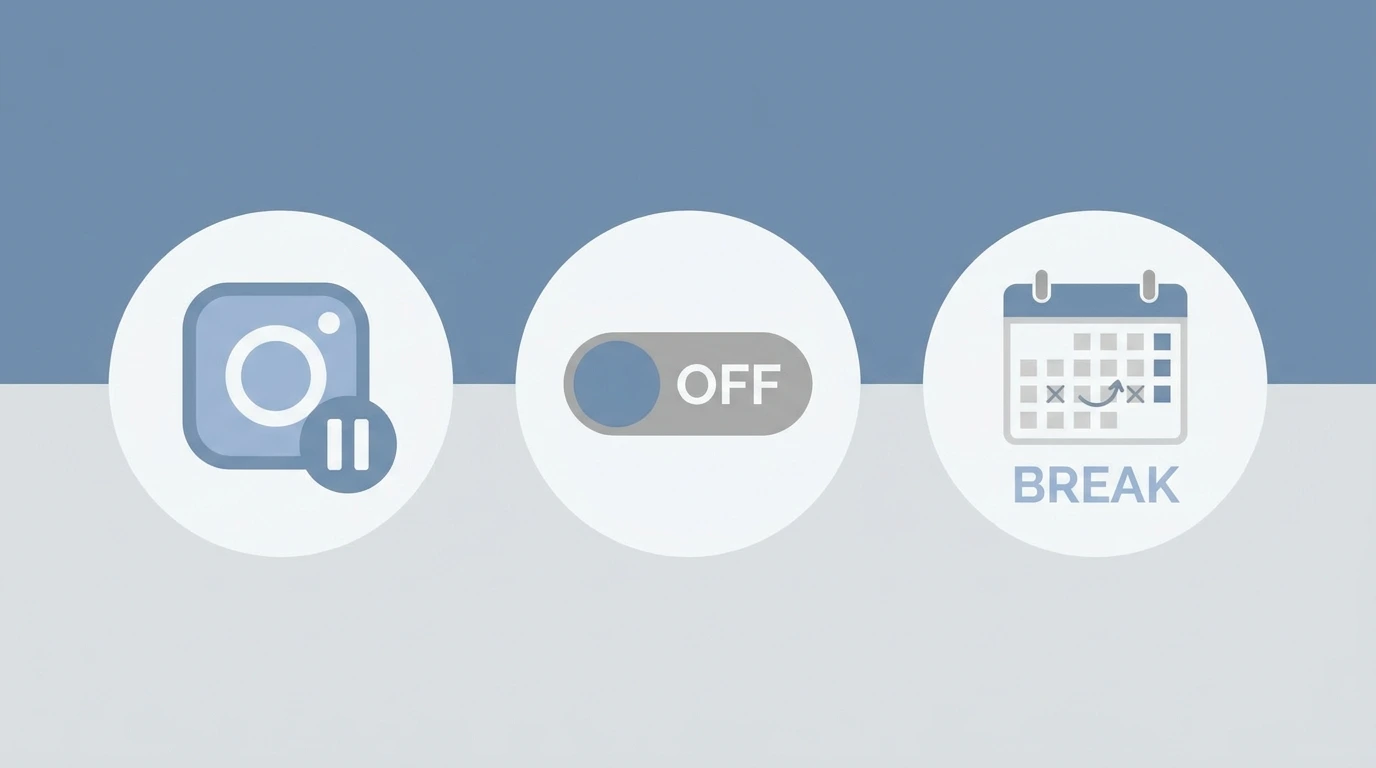
Deactivating your Instagram account gives you a break from the platform without losing your content or connections. Your profile becomes invisible to other users while your data remains safely stored. When you are ready to return, simply log back in to restore everything.
This guide explains how to deactivate your Instagram account, what to expect during deactivation, and how to reactivate it when you choose to return.
What Deactivating Your Instagram Account Does
When you deactivate your Instagram account:
- Your profile is hidden from all other users
- Your posts, reels, stories highlights, and comments are not visible
- People cannot search for or find your account
- Your followers and following list are preserved
- All your content remains intact on Instagram’s servers
- You will not receive notifications during deactivation
Deactivation is completely reversible. Nothing is deleted. Your account returns to its previous state the moment you log back in.
How to Deactivate Your Instagram Account on Desktop
Deactivation is only available through the Instagram website. The mobile app does not include this option.
Steps:
- Open a browser and go to instagram.com
- Log in to your account
- Click your profile picture in the top right corner
- Click Edit profile
- Scroll to the bottom of the page
- Click Temporarily deactivate my account
- Select a reason for deactivating from the dropdown menu
- Enter your Instagram password
- Click Temporarily Deactivate Account to confirm
Your account is deactivated immediately after confirmation. You will be logged out automatically.
How to Deactivate Your Instagram Account on Mobile
The Instagram mobile app does not offer a deactivation option. You must use a mobile browser to complete this process.
Steps:
- Open a browser on your phone and go to instagram.com
- Log in to your account
- Tap your profile picture to go to your profile
- Tap Edit profile
- Scroll down and tap “Temporarily deactivate my account.”
- Select a reason from the dropdown menu
- Enter your password
- Tap Temporarily Deactivate Account
The process is identical to the desktop version. Make sure you are using the browser version of Instagram, not the app.
How Long Can You Keep Your Instagram Account Deactivated
Instagram does not publish a strict time limit for how long an account can remain deactivated. Most users are able to keep their accounts deactivated for weeks or months without issues.
However, repeatedly deactivating and reactivating your account in short periods may raise flags within Instagram’s systems. It is advisable to use deactivation for genuine breaks rather than frequent short pauses.
If you plan to be away from Instagram for an extended period and are unsure about returning, consider whether permanent deletion is a better choice for your situation.
How to Reactivate Your Instagram Account
Reactivating your Instagram account requires no extra steps. Simply log back in, and your account is restored.
Steps:
- Open the Instagram app or visit instagram.com
- Enter your username and password
- Tap Log in
Your profile, posts, followers, and all content will reappear immediately. Everything is restored exactly as it was before deactivation.
For a complete guide on returning to your account, see our article on How to Reactivate Your Instagram Account.
Deactivation vs Deletion Key Differences
Understanding the difference between deactivation and deletion helps you make the right decision.
| Decision | Deactivation | Deletion |
|---|---|---|
| Profile visibility | Hidden | Permanently removed |
| Content preserved | Yes | No |
| Reversible | Yes, anytime | Only within 30 days |
| Followers preserved | Yes | No |
| Purpose | Temporary break | Permanent exit |
If you want to permanently remove your account and all associated data, see our guide on How to Delete an Instagram Account.
Frequently Asked Questions
Can I deactivate my Instagram account from the app?
No. The Instagram mobile app does not include a deactivation option. Use a mobile or desktop browser to access instagram.com and complete the process there.
Will my followers know I deactivated my account?
No. Your profile simply disappears from searches and feeds. Instagram does not send any notification to your followers when you deactivate.
Can I deactivate my Instagram account more than once?
Yes, but Instagram limits how frequently you can deactivate. You generally cannot deactivate an account that was recently reactivated within the same week.
What happens to my direct messages when I deactivate?
Your conversations are hidden during deactivation. People you have messaged will not be able to see your messages or profile while your account is inactive. Everything reappears when you reactivate.
Does deactivating Instagram also deactivate my Facebook?
No. Instagram and Facebook are managed separately. Deactivating one does not affect the other, even if your accounts are linked.
Conclusion
Deactivating your Instagram account is the right choice when you need a temporary break without losing your content, followers, or history. The process takes less than a minute through instagram.com, and returning is as simple as logging back in.
If you decide that a permanent exit is what you need, refer to our guide on How to Delete an Instagram Account for complete instructions.
For a full overview of all account management options, visit our Complete Guide to Managing Your Instagram Account.