Instagram Reels Quality: How to Get the Best Video Quality
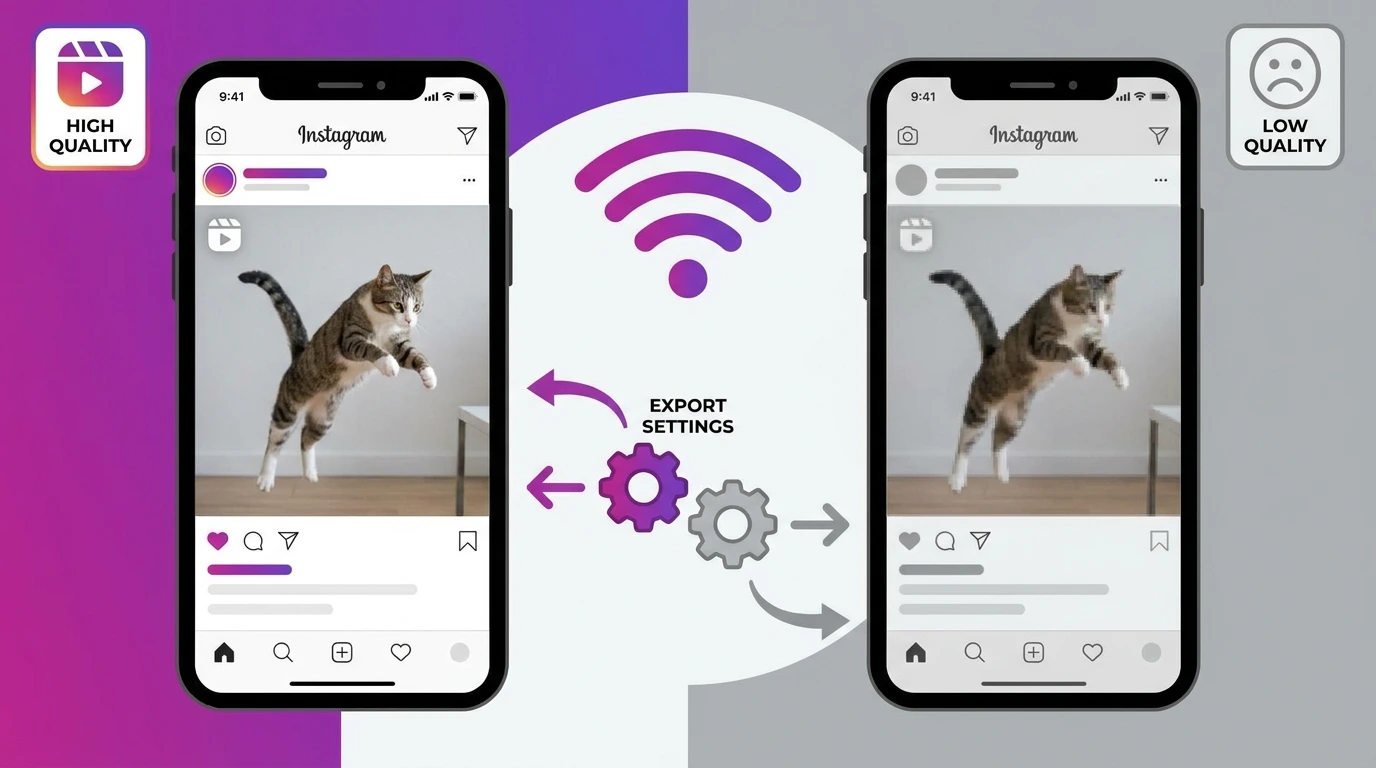
Instagram Reels quality is one of the most common concerns for creators who put effort into filming and editing their videos, only to find they look blurry or washed out after uploading. Instagram Reels go through automatic compression on upload, but using the right export settings and upload conditions keeps quality loss to a minimum.
This guide explains exactly what affects Reels quality and how to get the sharpest result possible.
Why Instagram Reels Lose Quality After Upload
Instagram compresses every video uploaded to its platform to reduce file size and improve loading speed. This compression is applied automatically and cannot be turned off. However, the amount of visible quality loss depends on:
- The resolution and bitrate of your source video
- The file format you upload
- The strength of your internet connection during upload
- Whether Instagram’s data saver setting is enabled on the viewer’s device
Starting with the highest quality source file and uploading under the right conditions minimizes the impact of Instagram’s compression.
Recommended Export Settings for Instagram Reels
Use these settings when exporting your video from any editing app or software:
| Setting | Recommended Value |
|---|---|
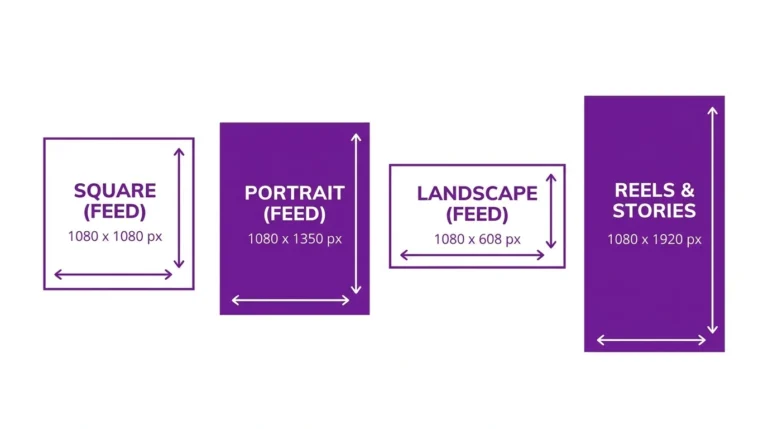
| Resolution | 1080 x 1920 px |
| Aspect Ratio | 9:16 |
| Frame Rate | 30fps (or 60fps for smooth motion) |
| Format | MP4 |
| Codec | H.264 |
| Bitrate | 3,500 – 5,000 kbps |
| Audio | AAC, 128 kbps or higher |
| Maximum Length | 90 seconds |
These settings give Instagram a high-quality source file to work with, which results in a better-looking Reel after compression is applied.
How to Upload Reels at the Highest Quality
The upload process itself affects final video quality.
Upload on Wi-Fi.
Always upload Reels on a strong, stable Wi-Fi connection rather than mobile data. Instagram applies stronger compression when it detects a slower connection.
Disable Instagram’s Data Saver.
Instagram has a data saver mode that reduces upload and playback quality to conserve data.
To disable it:
- Open the Instagram app
- Go to Settings and privacy
- Tap Data usage and media quality
- Make sure upload at highest quality is turned on
- Turn off Data saver if it is enabled
Avoid Re-uploading Compressed Videos
If you download a video from another platform and re-upload it to Instagram, the video has already been compressed once. Re-uploading a compressed video results in double compression and a significant quality loss. Always upload from your original source file.
Why Your Instagram Reel Looks Blurry
If your Reel looks blurry after uploading, the cause is usually one of the following:
- Source video resolution too low: Record or export at 1080p minimum
- Wrong aspect ratio: A non-9:16 video gets cropped and resized, which reduces sharpness
- Data saver mode active: Turn on Upload at highest quality in Instagram settings
- Weak upload connection: Instagram applies heavier compression on slow connections
- Over-compressed source file: Exporting at very low quality before uploading compounds Instagram’s own compression
Frequently Asked Questions
Why does my Reel look sharp in the app but blurry after posting?
Instagram processes your video after you tap Share. During this processing phase, compression is applied. The preview before posting shows your original file. The published version reflects the compressed result. Using the correct export settings reduces this difference.
Does Instagram support 4K Reels?
Instagram does not display Reels in 4K. The maximum display resolution is 1080p. Uploading at 4K does not improve quality Instagram will downscale the video to 1080p. Upload at 1080p for the best balance of quality and upload speed.
Can I improve the quality of a reel after it has been posted?
No. Once a reel is published, the video quality is fixed. If quality is unacceptable, delete the reel and repost using a higher-quality source file and the correct export settings.
Does the Instagram app reduce quality when I edit a Reel inside the app?
In-app editing applies some additional processing. For the highest possible quality, edit your video in a dedicated editing app and upload the finished file rather than editing extensively inside Instagram.
Does a slower internet connection during upload permanently reduce my Reel’s quality?
Yes. If Instagram detects a slow connection during upload, it applies heavier compression to the stored file. This compression is permanent. Upload on a strong Wi-Fi connection to avoid this.
Conclusion
Getting the best Instagram Reels quality comes down to three things exporting your video at the correct settings, enabling high-quality upload in the Instagram app, and uploading on a strong Wi-Fi connection. These steps give Instagram the best possible source material to work with and keep visible quality loss to a minimum.
For a complete overview of Instagram Reels, visit our Complete Instagram Reels Guide.