Instagram Reels Upload Issues: How to Fix Them
Instagram Reels upload issues are frustrating, especially when you have a video ready to share and the app refuses to process or publish it. Most Reels upload problems come down to a small number of causes that are straightforward to fix once you identify the right one.
This guide walks through the most common Reels upload issues and how to resolve each one.
Common Causes of Reels Upload Failures
- Poor or unstable internet connection
- Unsupported video file format
- Video file size too large
- Video duration exceeds 90 seconds
- Outdated Instagram app version
- Corrupted app cache
- Instagram server issues
- Insufficient storage space on your device
How to Fix These Problems
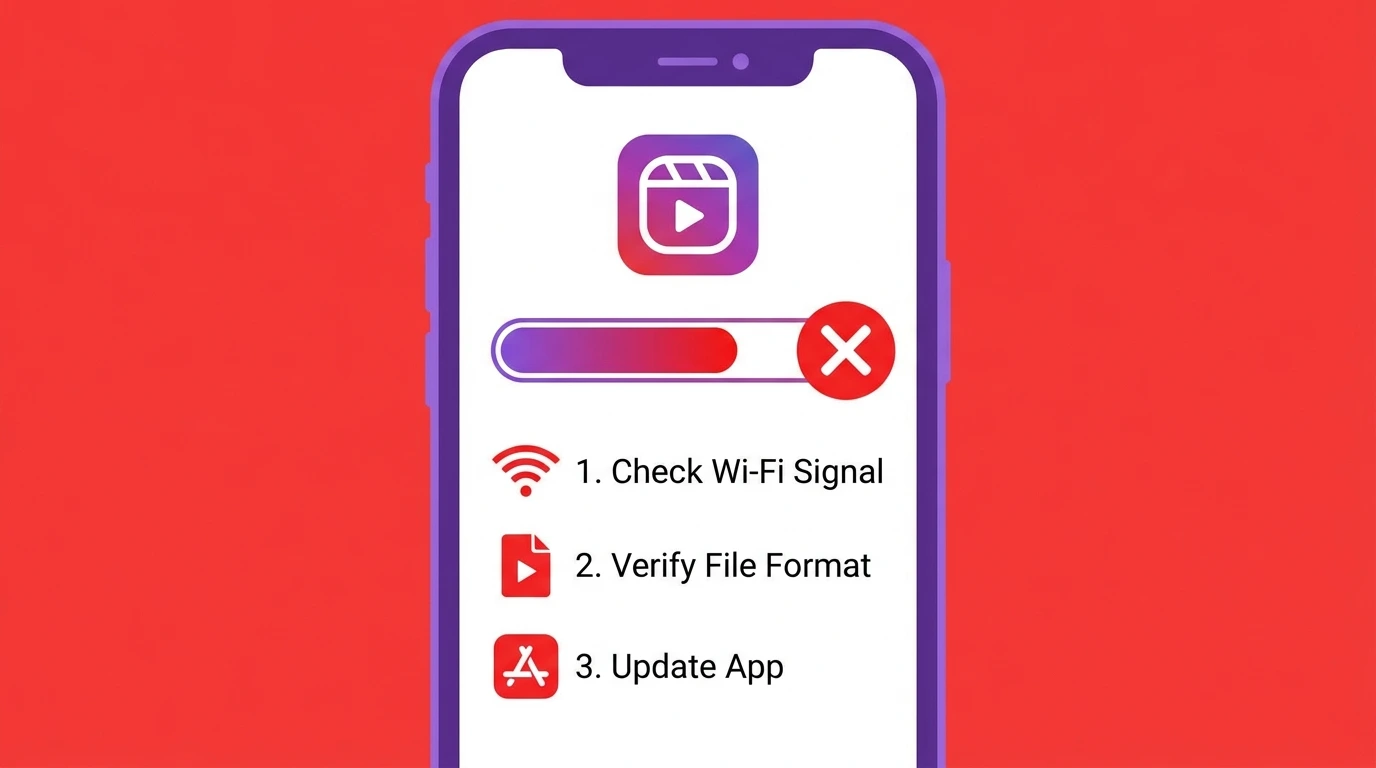
Fix 1: Check Your Internet Connection
A weak connection is the most common reason Reels fail to upload. Video files are large and require a stable connection throughout the entire upload process.
- Switch to a Wi-Fi connection if you are on mobile data
- Move closer to your router if the signal is weak
- Try toggling airplane mode off and on to reset your connection
- Test your connection by opening a website or streaming a video
If your connection is the issue, the Reel will upload successfully once your signal improves.
Fix 2: Check Your Video Format and Specifications
Instagram has specific requirements for Reels uploads. If your video does not meet these specifications, it may fail to process.
| Specification | Requirement |
|---|---|
| Format | MP4 recommended |
| Resolution | 1080 x 1920 px (9:16) |
| Maximum duration | 90 seconds |
| Maximum file size | 4GB |
| Frame rate | 30fps recommended |
Convert your video to MP4 format if it is in a different format such as MOV, AVI, or MKV. Most video editing apps and online converters can handle this quickly.
Fix 3: Update the Instagram App
An outdated version of the Instagram app can cause upload errors that have nothing to do with your video file.
- Open the App Store (iOS) or Google Play Store (Android)
- Search for Instagram
- Tap Update if an update is available
- Reopen the app and try uploading your Reel again
Fix 4: Clear the App Cache
Cached data can interfere with video uploads and cause processing errors.
On Android:
- Go to Settings on your device
- Tap Apps
- Select Instagram
- Tap Storage
- Tap Clear Cache
On iPhone:
Delete and reinstall the Instagram app. This clears cached data and gives you a fresh install without affecting your account.
Fix 5: Free Up Device Storage
If your device is running low on storage, Instagram may not have enough space to process your video before uploading.
Check your available storage:
- On iPhone: Settings > General > iPhone Storage
- On Android: Settings > Storage
Delete unused files, apps, or photos to free up space, then try uploading your Reel again.
Fix 6: Check If Instagram Is Down
If none of the above fixes work, Instagram’s servers may be experiencing an outage. Check Downdetector (downdetector.com) or search recent social media posts to see if other users are reporting upload problems.
If Instagram is down, wait for the platform to restore service and try again.
Fix 7: Try Uploading from a Different Device or Browser
If the upload keeps failing on the app, try uploading your Reel through instagram.com on a desktop browser. This can help identify whether the issue is with the app installation on your specific device.
Frequently Asked Questions
Why is my Instagram Reel stuck on processing?
Processing delays are usually caused by a slow internet connection or a large file size. Make sure you are on a stable Wi-Fi connection and that your video is within Instagram’s file size and format requirements.
Why does my Reel say “failed to share”?
This error typically indicates a connection problem or a temporary issue with the Instagram app. Check your connection, restart the app, and try again.
How long should an Instagram Reel take to upload?
Upload time depends on file size and connection speed. A standard 30-second reel at 1080p typically uploads within one to three minutes on a reliable Wi-Fi connection.
Can I upload a reel in MOV format?
Instagram recommends MP4 format for Reels. MOV files may upload successfully in some cases, but converting to MP4 before uploading is the safest approach to avoid errors.
What should I do if my Reel keeps failing to upload after trying all fixes?
Report the issue through the Instagram app under Settings > Help > Report a Problem. Include details about your device, video format, and the error message you received.
Conclusion
Most Instagram Reels upload issues are caused by connection problems, unsupported file formats, or outdated app versions. Work through the fixes in this guide, starting with your internet connection, then check your video specifications, and update the app if needed.
For a complete overview of Instagram Reels, visit our Complete Instagram Reels Guide.