Complete Guide to Managing Your Instagram Account
Managing your Instagram account goes beyond posting photos and replying to comments. It includes controlling your security settings, recovering access when something goes wrong, and making informed decisions about deactivating or deleting your profile when needed.
This guide covers every major aspect of Instagram account management so you always know what options are available and how to use them.
What Instagram Account Management Covers
Instagram account management refers to all the settings, tools, and actions available to control your account. This includes:
- Updating your profile and personal information
- Changing your password and securing your login
- Reviewing which devices and apps have access to your account
- Recovering your account if you lose access
- Temporarily deactivating or permanently deleting your account
- Verifying your account identity
Understanding these options helps you stay in control of your account at all times.
How to Access Your Instagram Account Settings
All account management tools are available through the Instagram settings menu.
On mobile:
- Open the Instagram app
- Tap your profile picture in the bottom right
- Tap the three horizontal lines in the top right corner
- Select Settings and privacy
On desktop:
- Visit instagram.com and log in
- Click your profile picture in the top right
- Select Settings
From here you can manage your account information, security, privacy, and notifications.
How to Secure Your Instagram Account
Account security is the most important part of managing your Instagram profile. A compromised account can result in lost access, privacy violations, and damage to your personal or professional reputation.
Enable Two-Factor Authentication
Two-factor authentication adds a second verification step when logging in from an unrecognized device. Even if someone obtains your password, they cannot access your account without completing this step.
To enable two-factor authentication:
- Go to Settings and privacy
- Select Accounts Center
- Tap Password and security
- Select Two-factor authentication
- Choose your preferred method: authentication app or SMS
Using an authentication app is more secure than SMS verification.
Review Login Activity
Instagram shows a record of recent logins including device type and location. Reviewing this regularly helps you identify unauthorized access.
To check login activity:
- Go to Settings and privacy
- Select Accounts Center
- Tap Password and security
- Select Where you’re logged in
If you see an unfamiliar device or location, log out of that session immediately and change your password.
Manage Connected Apps
Third-party applications that connect to your Instagram account may have access to your data and activity. Remove any apps you no longer use or do not recognize.
To manage connected apps:
- Go to Settings and privacy
- Tap Apps and websites
- Review the active list and remove unnecessary connections
How to Change Your Instagram Password
Changing your password regularly is a basic security practice. You should also change it immediately if you suspect your account has been compromised.
To change your Instagram password:
- Go to Settings and privacy
- Select Accounts Center
- Tap Password and security
- Select Change password
- Enter your current password, then create a new one
- Tap Save changes
Choose a password that is at least 12 characters long and uses a combination of letters, numbers, and symbols. Avoid using the same password across multiple platforms.
For a detailed walkthrough, see our guide on How to Change Your Instagram Password.
What to Do If You Lose Access to Your Instagram Account
Losing access to your Instagram account is one of the most stressful situations users face. The right recovery path depends on why you lost access.
Forgotten Password
If you forgot your password, use the account recovery options on the login screen. Instagram can send a reset link to your email address or a verification code to your phone number.
To recover access:
- Open Instagram and tap Forgot password?
- Enter your username, email address, or phone number
- Follow the instructions sent to your email or phone
For complete recovery steps, see our guide on How to Recover an Instagram Account.
Hacked Account
If someone has taken over your account and changed your login details, act quickly. Instagram provides a specific recovery path for hacked accounts.
On the login screen, tap Get more help and follow the prompts to verify your identity. Instagram may ask you to submit a photo ID or complete a video selfie verification.
For full instructions, see our guide on Instagram Account Hacked.
Disabled Account
Instagram disables accounts that violate its Community Guidelines or Terms of Use. If your account was disabled, you may have the option to request a review.
For complete information on appeals and recovery, see our guide on Instagram Account Disabled.
How to Deactivate Your Instagram Account
Deactivating your Instagram account temporarily hides your profile, photos, and activity from other users. Your account is not deleted. You can reactivate it at any time by logging back in.
To deactivate your account:
- Go to your profile on the Instagram website
- Select Edit profile
- Scroll down and tap Temporarily deactivate my account
- Select a reason from the dropdown menu
- Enter your password and confirm
Deactivation is only available through the Instagram website, not the mobile app.
For complete deactivation steps, see our guide on How to Deactivate Your Instagram Account.
How to Delete Your Instagram Account
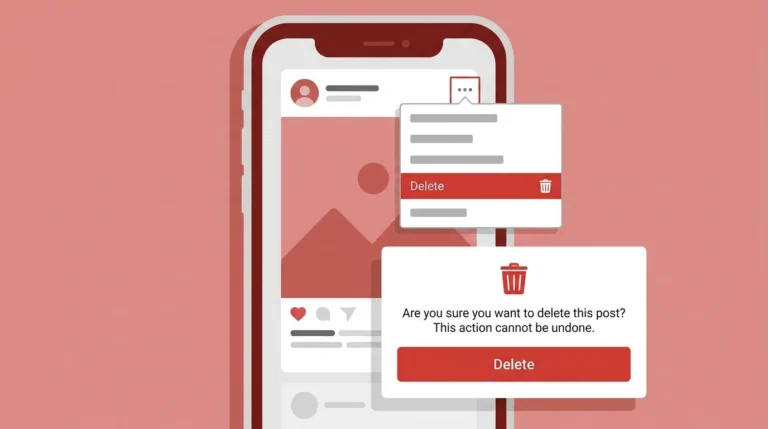
Deleting your Instagram account is permanent. All your photos, videos, followers, and account data will be removed. Instagram provides a 30-day grace period during which you can cancel the deletion by logging back in.
To delete your account:
- Visit the Instagram account deletion page
- Log in if prompted
- Select a reason for deletion
- Enter your password to confirm
- Tap Delete account
This action cannot be undone after the 30-day period expires.
For step-by-step instructions, see our guide on How to Delete an Instagram Account.
How to Verify Your Instagram Account
A verified badge on Instagram confirms that an account is the authentic presence of a public figure, celebrity, brand, or notable entity. Verification does not increase follower count or content reach directly, but it does establish credibility.
To request verification:
- Go to Settings and privacy
- Tap Account
- Select Request verification
- Complete the required information and submit
Instagram reviews all requests manually. Not all applications are approved.
For full eligibility requirements and submission tips, see our guide on How to Verify Your Instagram Account.
Frequently Asked Questions
Can I manage my Instagram account without the app?
Yes. Most account management tasks, including password changes, deactivation, and deletion, are available through the Instagram website at instagram.com.
What happens if I deactivate my Instagram account?
Your profile, posts, and activity become temporarily invisible to other users. Your data is preserved. You can reactivate at any time by logging back in.
How long does it take for a deleted Instagram account to be removed?
After requesting deletion, Instagram waits 30 days before permanently removing your account. Logging in during this period cancels the deletion.
Can I recover a deleted Instagram account?
If you deleted your account and the 30-day grace period has passed, the account cannot be recovered. Act quickly if you change your mind.
Conclusion
Managing your Instagram account effectively means understanding the tools available to you before you need them. Whether you want to improve your security, recover lost access, or close your account entirely, Instagram provides clear options for each situation.
Use this guide as your starting point and refer to the individual guides in this series for detailed instructions on each topic.