How to Hide Instagram Posts
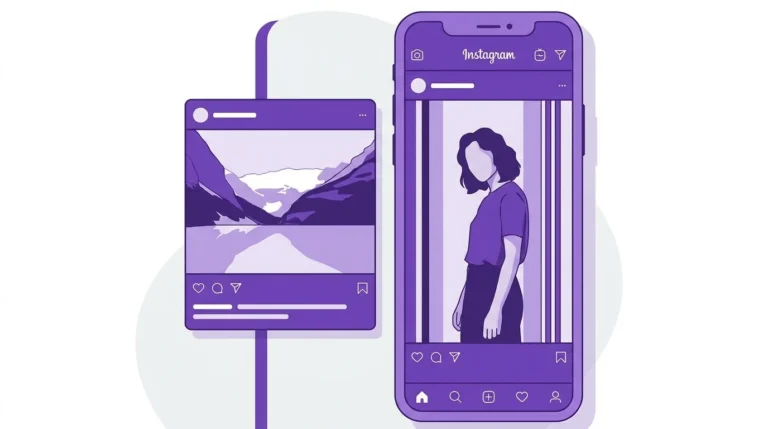
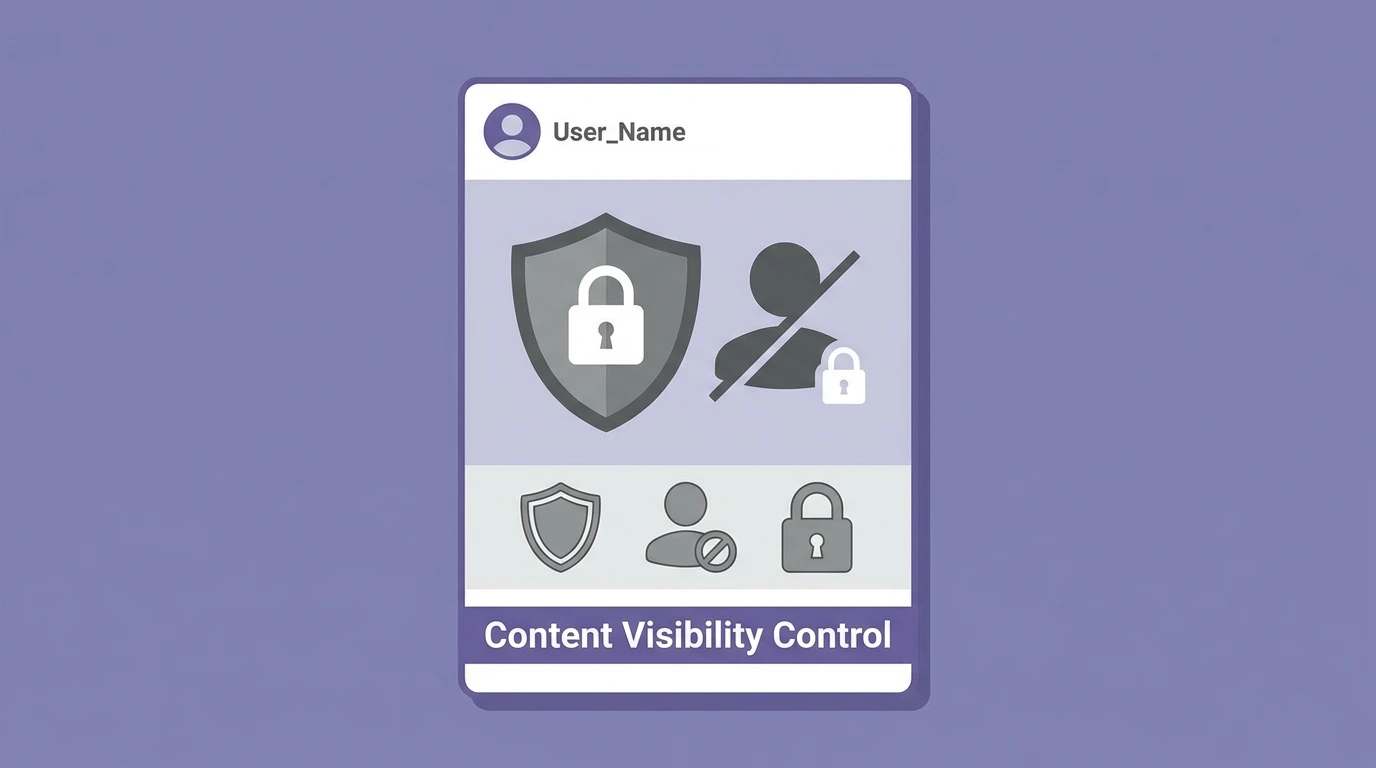
Instagram does not offer a built-in feature to hide Instagram posts from specific followers while keeping them visible to everyone else. However, depending on who you want to restrict, there are several privacy options that can help limit the visibility of your content.
The right approach depends on whether you want to hide a post from everyone, selected people, or only make it visible to a smaller audience.
Method 1: Switch to a Private Account
Setting your account to private means only approved followers can see your posts. Anyone who does not follow you or whose follow request you have not accepted cannot view your content.
How to switch to a private account:
- Open the Instagram app
- Go to Settings and privacy
- Tap Account privacy
- Toggle Private account on
Existing followers retain access to your posts. New viewers must send a follow request that you approve before seeing your content.
Method 2: Archive the Post
If you want to hide a specific post from everyone without deleting it, archiving is the most direct option. Archiving removes the post from your public profile and saves it privately.
For full instructions, see our guide on how to archive an Instagram post.
Method 3: Restrict a Specific User
Restricting a user limits what they can see and do on your account. When you restrict someone:
- Their comments on your posts are only visible to them unless you approve the comment
- They cannot see when you are active or when you have read their messages
- They do not know they have been restricted
Restricting does not hide your posts from a restricted user entirely, but it significantly limits their ability to interact with your content.
How to restrict a user:
- Go to the user’s profile
- Tap the three-dot menu in the top right corner
- Select Restrict
You can also restrict a user by swiping left on their comment on your post and tapping the ! icon.
Method 4: Block a User
Blocking a user prevents them from seeing your profile, posts, or Stories entirely. The blocked user cannot find your account in search or see any of your content.
How to block a user:
- Go to the user’s profile
- Tap the three-dot menu
- Select Block
A blocked user is not notified that they have been blocked.
Method 5: Use Close Friends for Stories
While this option applies to Stories rather than feed posts, the Close Friends list lets you share Stories with a selected group of followers only. This is useful if you want to share certain content with a limited audience without making your account fully private.
Frequently Asked Questions
Can I hide a post from one specific follower without blocking them?
Instagram does not have a feature to hide individual feed posts from specific followers while keeping them visible to others. Your options are to archive the post, restrict the user, or block them.
Does hiding a post on Instagram notify anyone?
No. Archiving a post, restricting a user, or blocking someone does not send any notification to the affected user.
Can I make individual posts private on Instagram?
Instagram does not allow individual posts to have separate privacy settings. Privacy applies to your entire account. To hide a specific post, archive it.
Will a restricted user know I restricted them?
No. Instagram does not notify users when they are restricted. The restrictions take effect silently.
Can someone still see my posts if I block them?
No. Blocking prevents the user from accessing your profile, posts, Stories, and any other content on your account.
Conclusion
Instagram does not provide a single button to hide individual posts from specific followers, but archiving, restricting, and blocking give you effective control over who can see your content. Choose the method that matches your situation.
For a full overview of post management options, visit our Complete Guide to Instagram Posts.