Instagram Post Templates: How to Use Them for Perfect Sizing
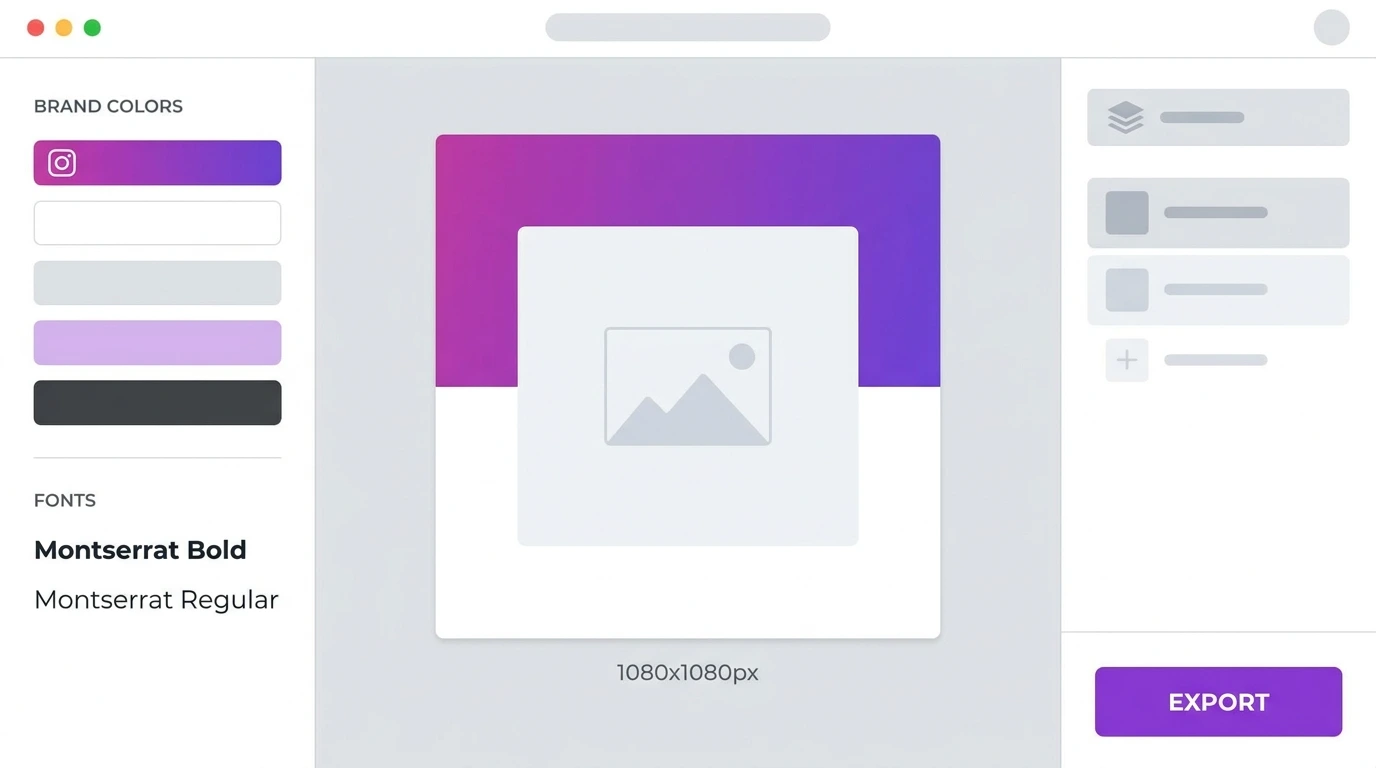
An Instagram post template is a pre-built design file set to the correct Instagram dimensions. Templates let you create new posts quickly while maintaining consistent sizing, branding, and visual style across your content.
Why Use Instagram Post Templates
Designing every post from scratch takes time and increases the risk of using incorrect dimensions. A template solves both problems by giving you a ready-to-use canvas that is already the right size.
Templates are useful for:
- Maintaining consistent visual branding across your feed
- Speeding up your content creation process
- Ensuring every post uses the correct dimensions without manually checking each time
- Creating a recognizable content style that followers associate with your account
Correct Template Sizes for Instagram
Set up your templates at these dimensions depending on the post format you use:
| Format | Template Size | Aspect Ratio |
|---|---|---|
| Square post | 1080 x 1080 px | 1:1 |
| Portrait post | 1080 x 1350 px | 4:5 |
| Landscape post | 1080 x 566 px | 1.91:1 |
| Carousel slide | 1080 x 1080 px or 1080 x 1350 px | 1:1 or 4:5 |
| Reels cover | 1080 x 1920 px | 9:16 |
Best Tools for Instagram Post Templates
Canva
Canva is the most widely used tool for Instagram template creation. It includes hundreds of pre-built Instagram post templates already sized at 1080 x 1080 px and 1080 x 1350 px.
You can customize colors, fonts, and layouts, then save your design as a reusable template for future posts. Canva is available free with optional paid plans for additional features.
Adobe Express
Adobe Express offers a straightforward template editor with Instagram-specific size presets. It is a good option for users already in the Adobe ecosystem.
Photoshop
For professional designers, Photoshop provides full control over template creation. Set up your document at the correct pixel dimensions, build your template layers, and save it as a PSD file for reuse.
Other Tools
- Figma: Popular for designers who prefer vector-based layouts
- Snapseed: Mobile-based editing with template-like presets
- Over (GoDaddy Studio): Mobile-first Instagram design app
How to Set Up an Instagram Template in Canva
Steps:
- Go to canva.com and log in
- Click Create a design
- Search for Instagram Post in the search bar
- Select the format square (1080 x 1080) or portrait (1080 x 1350)
- Choose a pre-built template or start with a blank canvas
- Customize colors, fonts, images, and layout to match your brand
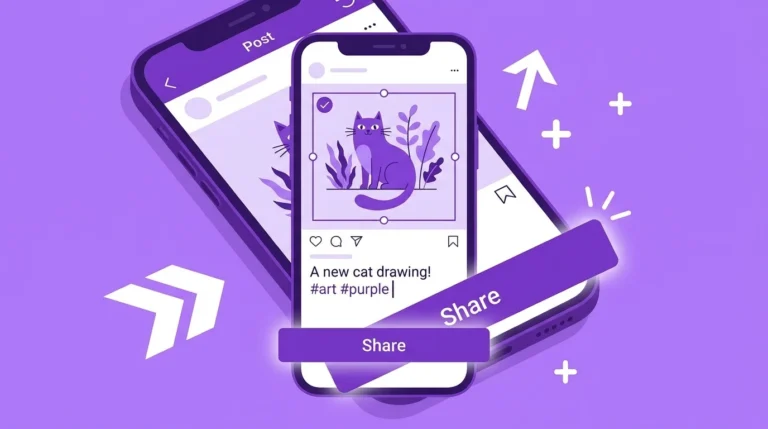
- Click Share > Download to export your finished post as a JPEG or PNG
- Save the editable version in Canva for reuse as a template
Tips for Creating Effective Instagram Templates
- Keep your core design elements logo, color palette, and font consistent across all templates
- Leave space for a photo or graphic that changes with each post
- Design separate templates for different content types quotes, product photos, and announcements
- Export at the highest quality available in your tool to minimize quality loss after Instagram’s compression
Frequently Asked Questions
Are Instagram post templates free?
Many tools offer free templates. Canva has a large library of free Instagram templates. Some premium tools and template packs require a paid subscription.
Can I create my own Instagram template from scratch?
Yes. Use any design tool that lets you set a custom canvas size. Set the dimensions to your chosen Instagram format and build your template from there.
What file format should I save my Instagram template in?
Save the editable version in your design tool’s native format (Canva file, PSD, or Figma file) so you can reuse and update it. Export finished posts as JPEG or PNG for uploading to Instagram.
Can I use the same template for all Instagram post formats?
No. Each format has different dimensions. Create separate templates for square, portrait, and carousel posts to ensure each one displays correctly.
Do Instagram templates affect post performance?
Templates do not directly affect performance. However, a consistent visual style makes your account look more professional, which can improve follower trust and long-term engagement.
Conclusion
Instagram post templates save time, maintain consistent sizing, and help build a recognizable visual brand. Set up your templates in Canva, Adobe Express, or your preferred design tool at the correct Instagram dimensions, and use them as the starting point for every post you create.
For the full set of Instagram size specifications your templates should be based on, visit our Instagram Image & Post Size Guide.