How to Create an Instagram Post
Creating an Instagram post is straightforward, but knowing every available option helps you get the most out of each post. This guide walks you through the complete process from selecting your photo or video to choosing your audience and hitting share.
What You Need Before You Post
Before creating a post, make sure you have:
- An active Instagram account
- The Instagram app installed on your phone, or access to instagram.com on a desktop browser
- A photo or video saved to your device
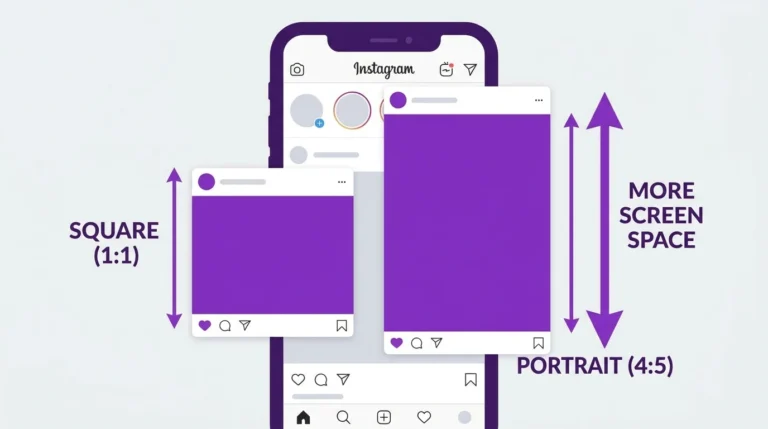
Instagram supports JPEG and PNG images and MP4 video files. For best results, use images with a square (1:1), portrait (4:5), or landscape (1.91:1) aspect ratio.
How to Create an Instagram Post on Mobile
Steps:
- Open the Instagram app
- Tap the “+” icon at the bottom center of the screen
- Select “Post” from the menu
- Choose a photo or video from your camera roll, or take a new one using the camera
- Tap Next
- Apply a filter or make manual adjustments if needed, then tap Next
- Write your caption in the caption field
- Add a location tag if relevant
- Add hashtags in the caption or first comment
- Toggle audience settings if your account is set to private
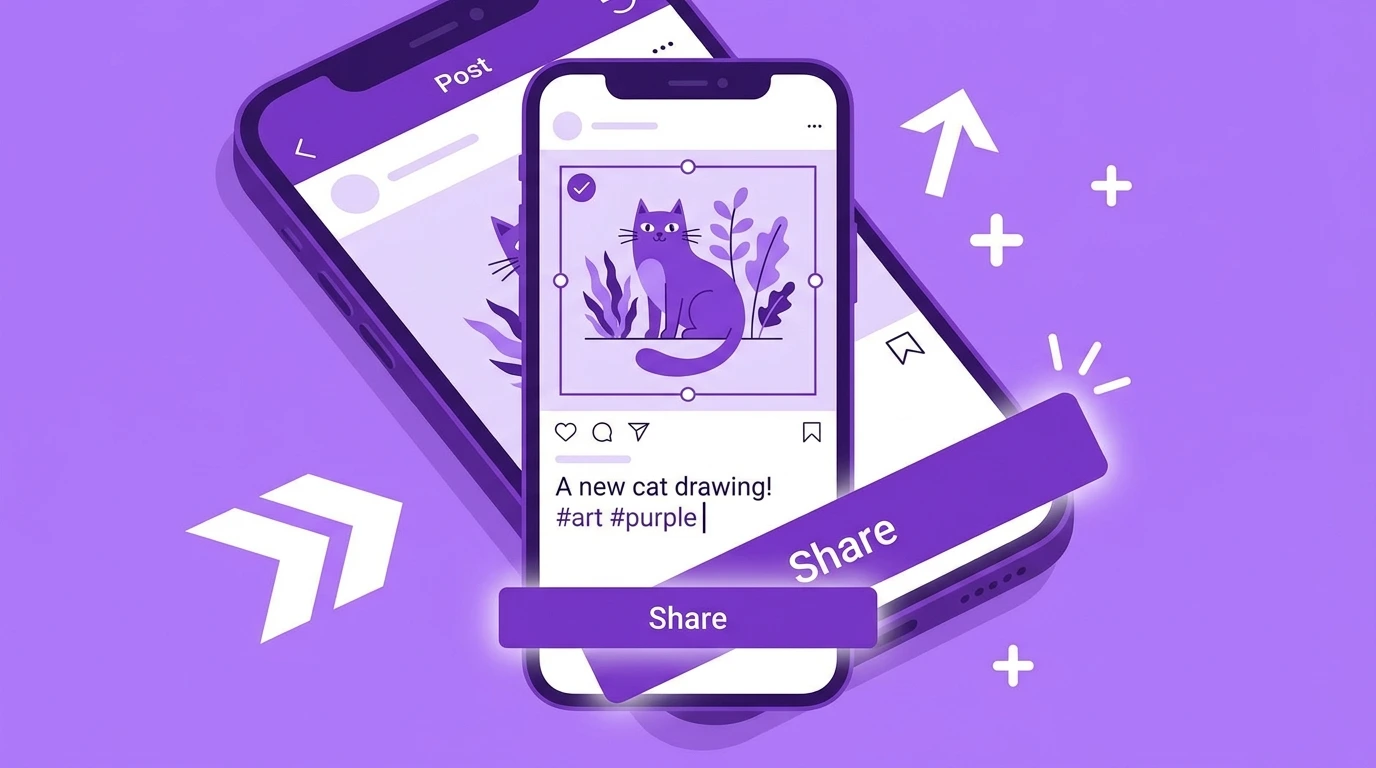
- Tap Share
Your post appears on your profile grid immediately.
How to Create an Instagram Carousel Post
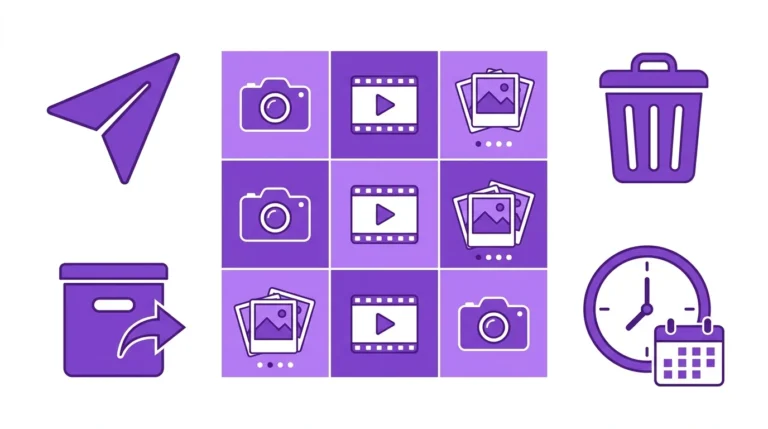
A carousel post lets you include up to 20 photos or videos in a single swipeable post.
Steps:
- Tap the “+” icon and select Post
- Tap the Select Multiple icon (overlapping squares) in the bottom right of the media selector
- Select up to 20 photos or videos in the order you want them to appear
- Tap Next
- Apply edits: You can edit each slide individually or apply the same filter to all
- Tap Next, add your caption and other details
- Tap Share
How to Create an Instagram Post on Desktop
Instagram allows posting from a desktop browser at instagram.com.
Steps:
- Go to instagram.com and log in
- Click the “+” icon in the left sidebar
- Click “Select from computer” and choose your file
- Crop or adjust the image as needed and click Next
- Apply a filter if desired and click Next
- Write your caption, add a location, and adjust settings
- Click Share
Most post features are available on desktop, though some options such as music and certain interactive stickers are only available in the mobile app.
Writing an Effective Instagram Caption
Your caption adds context to your post and gives your audience a reason to engage. Keep these points in mind:
- Put the most important information in the first line, as Instagram truncates long captions
- Use a natural tone that matches your brand or personal style
- Include a clear call to action when relevant
- Add hashtags at the end of the caption or in a comment to keep the caption clean
Using Hashtags on Instagram Posts
Hashtags help your post appear in relevant searches and reach users who do not already follow you.
- Use hashtags that are directly relevant to your content
- Mix popular hashtags with niche-specific ones
- Instagram allows up to 30 hashtags per post, but 5 to 10 well-chosen hashtags typically perform better than 30 generic ones
Adding Alt Text to Your Instagram Post
Alt text improves accessibility and helps Instagram’s algorithm understand your content.
To add alt text:
- On the final screen before sharing, tap Advanced settings
- Tap Write alt text
- Describe the image clearly and naturally
- Tap Save
Frequently Asked Questions
Can I post on Instagram without the app?
Yes. You can create and publish posts from a desktop browser at instagram.com. The process is similar to the mobile app with a few feature limitations.
How long can an Instagram video post be?
Video posts on the Instagram feed can be up to 60 minutes long. However, shorter videos between 30 seconds and 3 minutes tend to perform better for engagement.
Can I add music to an Instagram feed post?
Music can be added to Reels. For standard photo or carousel posts, music is not directly supported in the same way, though some accounts have access to music stickers for certain post types depending on their region and account type.
What image size works best for Instagram posts?
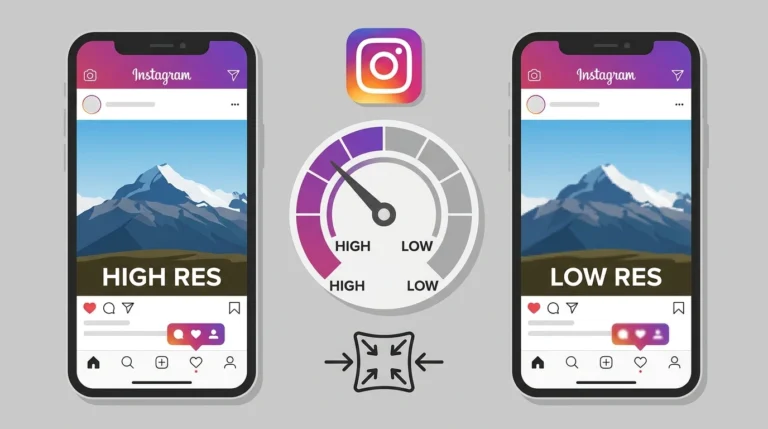
The recommended sizes are 1080 x 1080 pixels for square posts, 1080 x 1350 pixels for portrait posts, and 1080 x 566 pixels for landscape posts.
Can I edit my Instagram post after publishing?
You can edit the caption, location tag, and alt text after publishing. The photo or video itself cannot be replaced once the post is live.
Conclusion
Creating an Instagram post takes only a few minutes once you know the process. Select your content, apply your edits, write a caption, and share. Taking time to write a good caption, choose relevant hashtags, and add alt text helps each post perform better and reach a wider audience.
For a full overview of everything you can do with your posts after publishing, visit our Complete Guide to Instagram Posts.