How to Change Your Instagram Password
Changing your Instagram password regularly is a straightforward way to protect your account. You should also update it immediately if you suspect unauthorized access or if you receive a security alert from Instagram.
This guide covers how to change your password when you are logged in and how to reset it when you have forgotten it or cannot access your account.
How to Change Your Instagram Password on Mobile
Steps:
- Open the Instagram app on your phone
- Tap your profile picture in the bottom right corner
- Tap the three horizontal lines in the top right corner
- Select Settings and privacy
- Tap Accounts Center
- Select Password and security
- Tap Change password
- Select the Instagram account you want to update
- Enter your current password
- Enter your new password and confirm it
- Tap Save changes
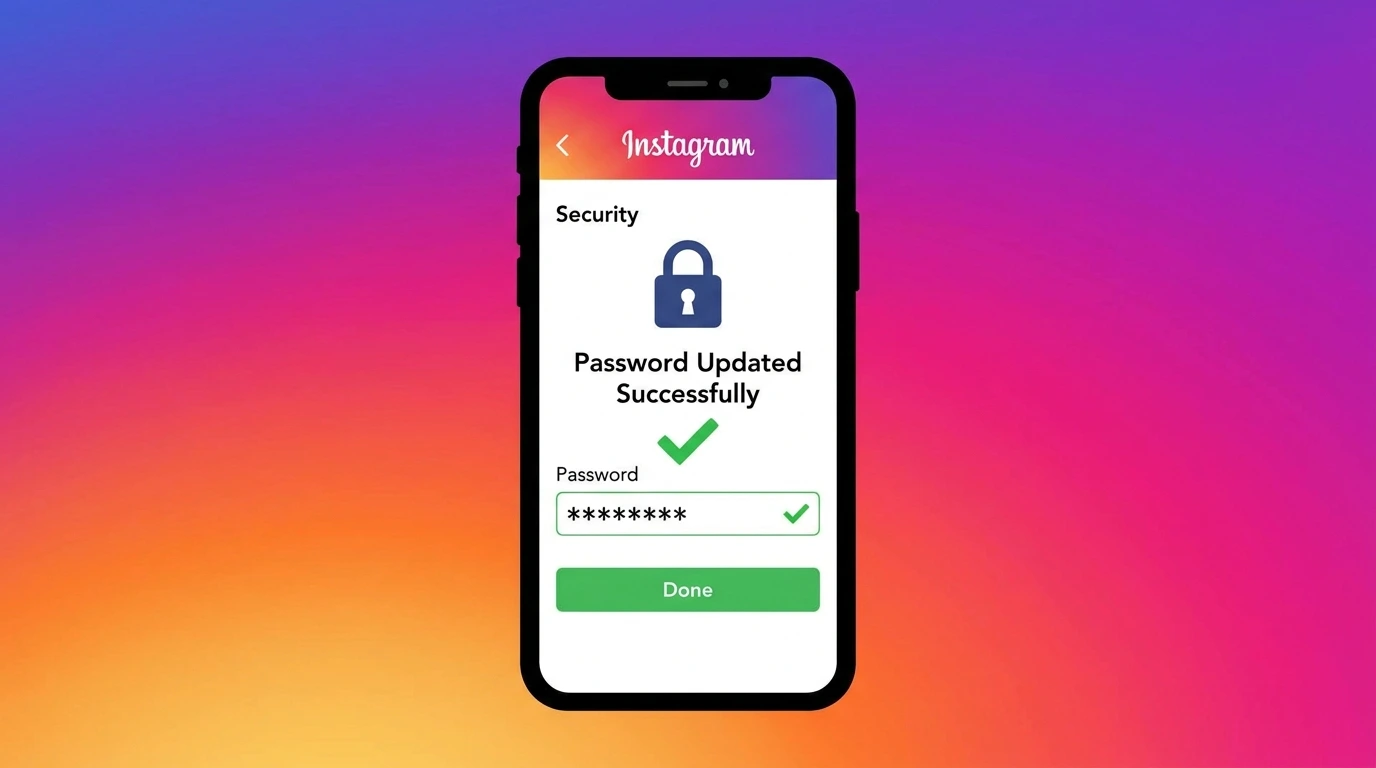
Your password is updated immediately. You may be prompted to log in again on other devices using your new credentials.
How to Change Your Instagram Password on Desktop
Steps:
- Open a browser and go to instagram.com
- Click your profile picture in the top right corner
- Select Settings
- Click Accounts Center
- Select Password and security
- Click Change password
- Choose your Instagram account
- Enter your current password
- Enter and confirm your new password
- Click Save changes
The process is identical across all major browsers. Your password change takes effect immediately.
How to Reset Your Instagram Password If You Forgot It
If you are locked out of your account because you forgot your password, use the recovery options on the login screen.
Reset via Email
- Open Instagram and tap Forgot password?
- Enter your username or the email address linked to your account
- Tap Send login link
- Open the email from Instagram and tap the reset link
- Create a new password and confirm it
- Log in with your new credentials
Reset links expire after a short period. If the link has expired, request a new one from the login screen.
Reset via Phone Number
- Open Instagram and tap Forgot password?
- Enter your username or linked phone number
- Tap Send code
- Enter the verification code sent to your phone
- Create and confirm your new password
Reset via Facebook
If your Instagram account is linked to a Facebook account:
- On the Instagram login screen, tap Log in with Facebook
- Complete the Facebook login process
- Once inside Instagram, go to Accounts Center > Password and security > Change password to set a dedicated Instagram password
How to Create a Strong Instagram Password
A strong password is your first line of defense against unauthorized access.
Follow these guidelines:
- Use at least 12 characters
- Combine uppercase letters, lowercase letters, numbers, and symbols
- Avoid using your name, username, or common words
- Do not reuse passwords from other accounts or platforms
- Consider using a password manager to generate and store complex passwords securely
Avoid sharing your password with anyone, including people claiming to be Instagram support. Instagram will never ask for your password through DMs or email.
Frequently Asked Questions
How often should I change my Instagram password?
There is no fixed rule, but changing your password every few months is a reasonable practice. Change it immediately if you receive a security alert or suspect your account has been accessed without your permission.
Does changing my Instagram password log me out of all devices?
Yes. After changing your password, all other active sessions are typically logged out. You will need to log in again on each device using your new password.
What should I do if I am not receiving the password reset email?
Check your spam or junk folder. Make sure you are entering the correct email address. If the problem persists, try resetting via phone number instead.
Can I change my Instagram password without knowing my current password?
Yes, using the Forgot Password recovery option on the login screen. You do not need to know your current password to reset it via email or SMS.
Is it safe to use the same password for Instagram and Facebook?
No. Using a unique password for each platform limits the damage if one account is compromised. If one password is stolen, your other accounts remain protected.
Conclusion
Changing your Instagram password is a quick process whether you are using the app or a browser. If you have forgotten your password, Instagram’s recovery options allow you to reset it via email, phone, or a linked Facebook account.
After changing your password, consider enabling two-factor authentication for an extra layer of security. For complete guidance on securing your account, see our article on How to Secure Your Instagram Account.
For a full overview of account management options, visit our Complete Guide to Managing Your Instagram Account.