How to Scan a QR Code on iPhone (2026 Guide)
Short answer: How to scan a QR code on iPhone? Open the Camera app, point it at the QR code, and tap the notification banner that appears. No extra app needed: QR scanning has been built into the iPhone camera since iOS 11. You can also use the Code Scanner in Control Center or scan codes from saved photos with Live Text.
How Do I Scan a QR Code with My iPhone Camera?
This is the fastest method and it works on every iPhone running iOS 11 or later, which covers virtually every iPhone still in use in 2026.
- Open the Camera app.
- Make sure you are in Photo mode (not Video or Portrait).
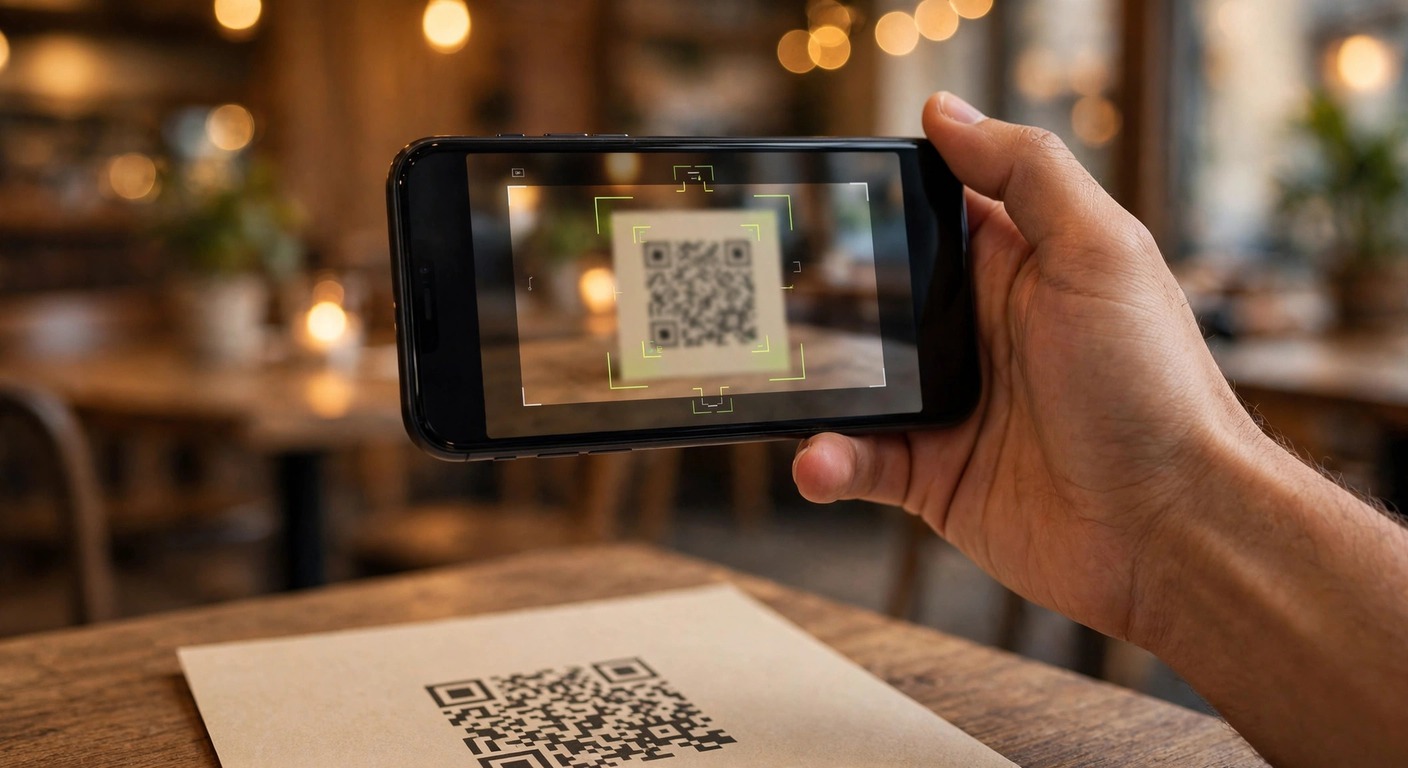
- Point the camera at the QR code so it sits inside the frame. Hold the phone steady for a second or two.
- A yellow bracket appears around the code and a notification banner drops down from the top of the screen.
- Tap the banner to open the link, join the Wi-Fi network, add the contact, or complete whatever action the code encodes.
The whole thing takes about three seconds. If nothing happens, first check that QR scanning is enabled: go to Settings → Camera and make sure Scan QR Codes is toggled on. It is on by default, but it can get switched off.
Where Is the QR Code Scanner in Control Center?
If you scan QR codes often, the dedicated Code Scanner is worth adding to Control Center. It opens a full-screen scanner view that some people find easier to aim than the Camera app.
To add it:
- Go to Settings → Control Center.
- Find Code Scanner in the list and tap the green + next to it (on iOS 18 and later, open Control Center, tap the + at the top or long-press empty space, then add the Code Scanner control).
To use it:
- Open Control Center (swipe down from the top-right corner on Face ID iPhones, or swipe up from the bottom on Touch ID iPhones).
- Tap the Code Scanner icon (it looks like a QR code).
- Point at the code. The scanner reads it instantly and opens the result.
The Code Scanner is especially handy in dark restaurants or bars where menus are QR-only, because it launches faster than unlocking the phone and opening the Camera app.
Can I Scan a QR Code from a Photo or Screenshot?
Yes. If someone sent you a QR code in a message or you saved one as a screenshot, you do not need to display it on another screen. Use Live Text:
- Open the photo containing the QR code in the Photos app.
- Tap the Live Text icon (the small text-in-a-box symbol) at the bottom of the screen.
- Tap the QR code itself. iOS recognizes it and shows the same action options as a live scan.
This works on iPhone XS and later running iOS 15 or newer. It is the easiest way to handle QR codes that arrive via WhatsApp, email, or text message.
Why Won’t My iPhone Scan the QR Code?
When scanning fails, the cause is almost always physical, not software. Run through this checklist:
| Problem | What to do |
| Code is too small or too far | Move closer until the code fills a good portion of the frame |
| Poor lighting | Turn on the flashlight or move to better light; glare on glossy prints also blocks scanning |
| Camera can’t focus | Tap the screen on the QR code to force focus; wipe a smudged lens |
| Scan QR Codes is off | Settings → Camera → turn on Scan QR Codes |
| Blurry or damaged code | Ask for a fresh copy; creased or low-contrast prints often fail |
| Phone is too old | QR scanning needs iOS 11+; check Settings → General → Software Update |
One more edge case: some QR codes link to content your region or network blocks, so the scan works but the page will not load. That is a network issue, not a scanning failure.
Do I Need a Third-Party QR Scanner App?
No. The built-in Camera scanner handles every standard QR code, and Apple keeps it updated with each iOS release.
Third-party scanner apps still exist on the App Store, but most are ad-supported and several request unnecessary permissions like location tracking or contact access just to read a code. There is no feature advantage worth that trade. The only reason to install one is if you need bulk scanning or code generation for business use, in which case pick a well-reviewed paid app with no ads.
A word of caution that applies to any scanner: QR codes can point anywhere, including phishing sites. Before tapping the banner, glance at the URL it shows. If a code on a random flyer claims to be your bank, type the bank’s address yourself instead.
The Bottom Line
Scanning a QR code on iPhone takes three seconds and zero extra apps. Point the Camera at the code, tap the banner, done. Add the Code Scanner to Control Center if you do it daily, use Live Text for codes in your photo library, and check the lighting and the Scan QR Codes toggle when it fails. For anything the Camera cannot read, the problem is almost always the code itself, not your phone.
Does the iPhone have a built-in QR code scanner?
Yes. Every iPhone running iOS 11 or later scans QR codes with the stock Camera app, no download required. There is also a dedicated Code Scanner you can add to Control Center.
How do I scan a QR code on iPhone without an app?
Open the Camera app, point it at the QR code, and tap the notification banner that appears. Make sure Scan QR Codes is enabled under Settings → Camera.
Why is my iPhone camera not scanning QR codes?
The most common reasons are the code being too far away, poor lighting, a smudged lens, or the Scan QR Codes toggle being off (Settings → Camera). Move closer, improve the light, and check the toggle.
Can I scan a QR code from my photo library?
Yes. Open the photo in the Photos app, tap the Live Text icon, then tap the QR code. This works on iPhone XS and later with iOS 15+.
Where do I find the QR scanner in Control Center?
Add it first: Settings → Control Center → tap the + next to Code Scanner. Then open Control Center and tap its icon to launch the scanner.
Is it safe to scan random QR codes?
Mostly, but stay alert. QR codes can link to phishing pages. Check the URL shown in the banner before tapping, and never enter passwords or payment details from a code you do not trust.
What iPhones can scan QR codes?
Any iPhone that runs iOS 11 or later, which includes the iPhone 8, iPhone X, and every model released since. If your iPhone is older than that, update iOS or use a third-party scanner app.