How to Delete an Instagram Account Permanently
Deleting your Instagram account is a permanent decision. Once the process is complete, your profile, photos, videos, comments, followers, and all associated data are removed from Instagram’s servers. This action cannot be reversed after the grace period expires.
This guide explains exactly how to delete your Instagram account, what to do before you proceed, and what your options are if you change your mind.
What Happens When You Delete Your Instagram Account
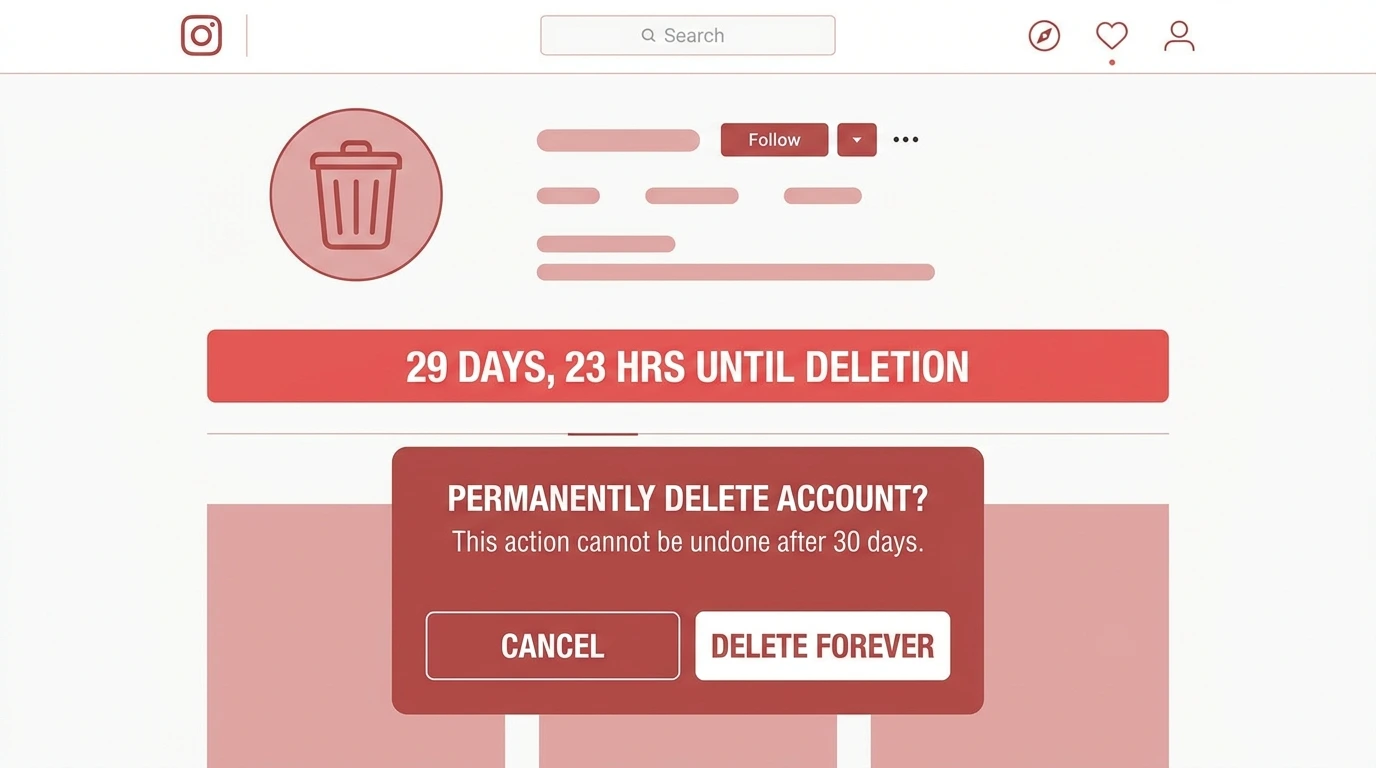
When you submit a deletion request, Instagram does not remove your account immediately. A 30-day waiting period begins during which your account is deactivated and hidden from other users.
During these 30 days:
- Your profile is not visible to anyone
- Your posts, stories, and activity are hidden
- You can cancel the deletion by logging back in
After 30 days, Instagram permanently deletes your account and all associated content. This includes your photos, videos, reels, messages, comments, likes, and follower connections. This data cannot be restored once deleted.
Before You Delete Your Instagram Account
Before proceeding with deletion, complete the following steps to avoid losing content you may want to keep.
Download Your Instagram Data
Instagram allows you to download a complete copy of your account data before deletion. This includes your photos, videos, messages, comments, profile information, and activity history.
To download your data:
- Open the Instagram app or visit instagram.com
- Go to Settings and privacy
- Select Your activity
- Tap Download your information
- Enter your email address and select your preferred file format
- Tap Request download
Instagram will email you a download link. Depending on account size, this may take several hours to a few days. Download and save your files before proceeding with deletion.
How to Delete Your Instagram Account on Mobile
Instagram does not provide a direct account deletion option inside the mobile app. You need to use a mobile browser to access the deletion page.
Steps:
- Open a browser on your phone and go to instagram.com
- Log in to the account you want to delete
- Tap your profile picture and go to your profile
- Tap Edit profile
- Scroll to the bottom and tap Temporarily deactivate my account — this opens the account management page
- On the account management page, look for the option to Delete account
- Select a reason for deletion from the dropdown menu
- Enter your Instagram password to confirm
- Tap Delete account
Alternatively, visit instagram.com/accounts/remove/request/permanent/ directly in your mobile browser to access the deletion page.
How to Delete Your Instagram Account on Desktop
Deleting your account on a desktop browser is the most straightforward method.
Steps:
- Open a browser and go to instagram.com
- Log in to your account
- Click your profile picture in the top right corner
- Select Settings
- Click Account
- Scroll to the bottom and click Delete account
- Select a reason from the dropdown menu
- Enter your password
- Click Delete account to confirm
Your account will enter the 30-day grace period immediately after confirmation.
How to Cancel an Instagram Account Deletion
If you change your mind after submitting a deletion request, you can cancel it by logging back into your account during the 30-day grace period.
To cancel deletion:
- Open Instagram and log in with your credentials
- Instagram will recognize the pending deletion and ask if you want to cancel
- Confirm that you want to keep your account
Once you log in and confirm, the deletion request is cancelled and your account is restored to normal.
If the 30-day period has already passed, the account cannot be recovered under any circumstances.
Difference Between Deleting and Deactivating Instagram
Many users confuse account deletion with deactivation. These are two very different actions.
| Deactivation | Deletion | |
|---|---|---|
| Profile visibility | Hidden | Removed |
| Data preserved | Yes | No |
| Reversible | Yes, anytime | Only within 30 days |
| Followers kept | Yes | No |
| Timeline | Temporary | Permanent |
If you are unsure about leaving Instagram permanently, deactivation is the safer option. You can reactivate your account at any time simply by logging back in.
For complete deactivation instructions, see our guide on How to Deactivate Your Instagram Account.
Frequently Asked Questions
Can I delete my Instagram account from the app?
The Instagram mobile app does not include a direct deletion option. Use a mobile browser and visit instagram.com to access the deletion page.
How long does Instagram keep my data after deletion?
Instagram begins permanently removing your data after the 30-day grace period. Some information may remain in backup systems for a short time after that, but it will not be accessible to you or other users.
Can I create a new Instagram account with the same username after deleting my old one?
Once an account is deleted, the username may become available again, but Instagram does not guarantee it. Another user could claim it before you create a new account.
Will deleting Instagram also delete my Facebook account?
No. Instagram and Facebook are separate accounts even if they are linked. Deleting your Instagram account does not affect your Facebook account.
What if I forgot my password and want to delete my account?
You need to be logged in to delete your account. Use the password recovery option on the login screen to regain access first, then proceed with deletion.
Conclusion
Deleting your Instagram account permanently removes all your content, connections, and activity from the platform. Before proceeding, download your data to preserve any content you want to keep. Use the 30-day grace period if you are not completely certain about your decision.
If you only need a break from Instagram rather than a permanent exit, consider deactivating your account temporarily instead.
For a complete overview of all Instagram account management options, return to our Complete Guide to Managing Your Instagram Account.