Instagram Login Problems: Causes and Fixes
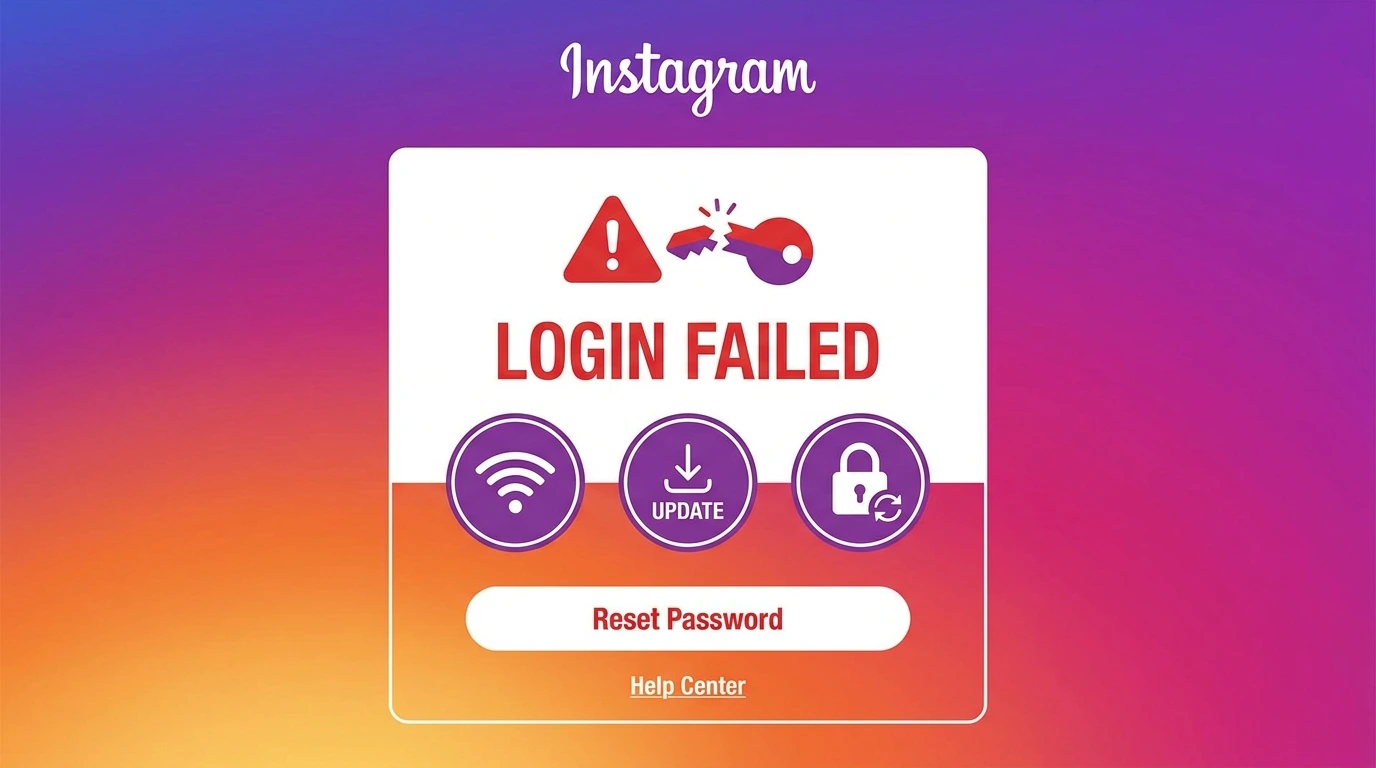
Instagram login problems can happen for several different reasons. Before spending time troubleshooting, it helps to identify the most likely cause so you apply the right fix from the start.
This guide covers the most common Instagram login issues and provides clear solutions for each one.
Common Causes of Instagram Login Problems
- Incorrect username or password
- Instagram server outage or maintenance
- Two-factor authentication code not arriving
- Outdated or corrupted Instagram app
- Poor or unstable internet connection
- Account disabled due to a policy violation
- Account hacked with login details changed
- Device-specific app errors
Identifying the correct cause helps you apply the right fix and avoid wasting time on solutions that do not apply to your situation.
Fix 1: Check If Instagram Is Down
Before troubleshooting your device, confirm that Instagram itself is functioning. During server outages or maintenance, login problems affect all users simultaneously.
Check Instagram’s status using a service such as Downdetector (downdetector.com) or search for recent reports on social media. If Instagram is experiencing a widespread outage, wait for the platform to restore service before attempting to log in again.
Fix 2: Reset Your Password
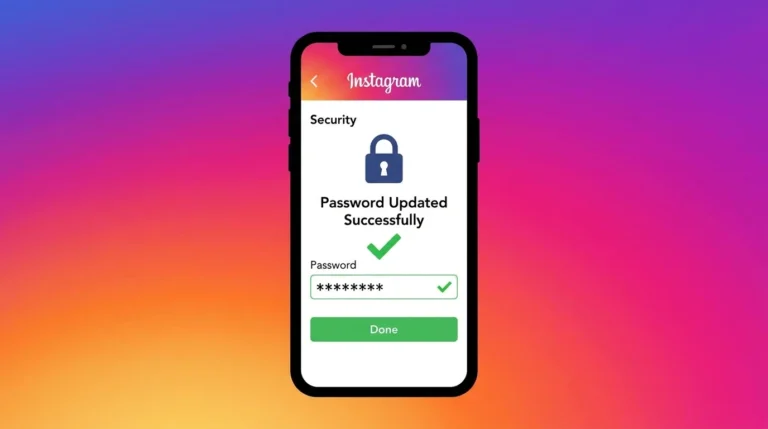
The most common login problem is an incorrect password. If your password is not working, reset it using the recovery option.
- On the login screen, tap Forgot password?
- Enter your username, email, or phone number
- Follow the instructions sent to your email or phone
- Create a new password and log in
For complete password reset instructions, see our guide on How to Change Your Instagram Password.
Fix 3: Fix Two-Factor Authentication Issues
If two-factor authentication is enabled on your account and you are not receiving the verification code, try the following:
- Check your signal: SMS codes require a working mobile connection
- Request the code again: Tap “Resend code” on the verification screen
- Use a backup code: If you saved backup codes when setting up two-factor authentication, use one of those
- Use your authentication app: If you set up an authenticator app, open it and use the current code displayed
If you have lost access to your two-factor authentication method entirely, follow the on-screen prompts to access additional recovery options.
Fix 4: Update or Reinstall the Instagram App
An outdated or corrupted app can cause login errors that have nothing to do with your account credentials.
Update the app:
- Open the App Store (iOS) or Google Play Store (Android)
- Search for Instagram
- Tap “Update” if an update is available
Reinstall the app:
- Delete Instagram from your device
- Reinstall it from the App Store or Google Play Store
- Open the app and log in
Reinstalling the app does not affect your account or its content.
Fix 5: Check Your Internet Connection
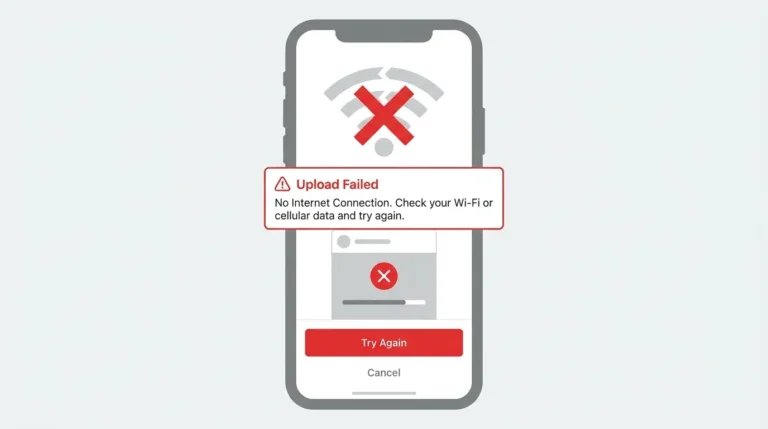
A weak or unstable internet connection can prevent the Instagram app from loading the login screen or authenticating your credentials.
- Switch between Wi-Fi and mobile data to test both
- Restart your router if using Wi-Fi
- Move closer to your router to improve signal strength
- Try opening another app or website to confirm your connection is working
Fix 6: Clear App Cache
Accumulated cache data can sometimes cause app errors, including login failures.
On Android:
- Go to Settings on your device
- Select Apps or Application Manager
- Find and tap Instagram
- Tap Storage
- Select Clear Cache
On iPhone:
iOS does not have a direct cache clearing option. Uninstalling and reinstalling the app achieves the same result.
Fix 7: Try Logging In from a Browser
If the Instagram app is not working on your device, try logging in through a browser instead.
- Open a browser on your phone or computer
- Go to instagram.com
- Enter your username and password
- Tap or click Log in
If you can log in through the browser but not the app, the issue is specific to the app installation on your device. Try reinstalling the app.
Fix 8: Check If Your Account Is Disabled
If Instagram displays a message stating that your account has been disabled when you try to log in, the issue is not a login error your account has been deactivated by Instagram for a policy violation.
This requires a different solution involving an appeal process. For detailed instructions, see our guide on Instagram Account Disabled.
Frequently Asked Questions
Why does Instagram say my password is incorrect when I know it is right?
Instagram passwords are case-sensitive. Check that your caps lock is not enabled and that you are entering the exact password. If you are certain it is correct, reset your password using the Forgot Password option.
Why am I not receiving the Instagram login code via SMS?
Check your mobile signal. If your signal is adequate, tap Resend code. Also confirm that the phone number linked to your account is current and active.
Can I log in to Instagram without my phone number?
Yes. Instagram offers multiple login options, including email address and username. You do not need to use your phone number to log in unless two-factor authentication requires it.
Why is Instagram asking me to verify my identity when I log in?
Instagram may trigger identity verification if you are logging in from a new device, an unusual location, or after a period of inactivity. Follow the on-screen instructions to complete verification and restore access.
Conclusion
Most Instagram login problems can be resolved by resetting your password, checking your internet connection, or updating the app. If the issue persists, try logging in through a browser to identify whether the problem is with the app or your account.
For account-specific issues such as a disabled account or a hacked account, see our dedicated guides on Instagram Account Disabled and Instagram Account Hacked.
For a complete overview of account management, visit our Complete Guide to Managing Your Instagram Account.