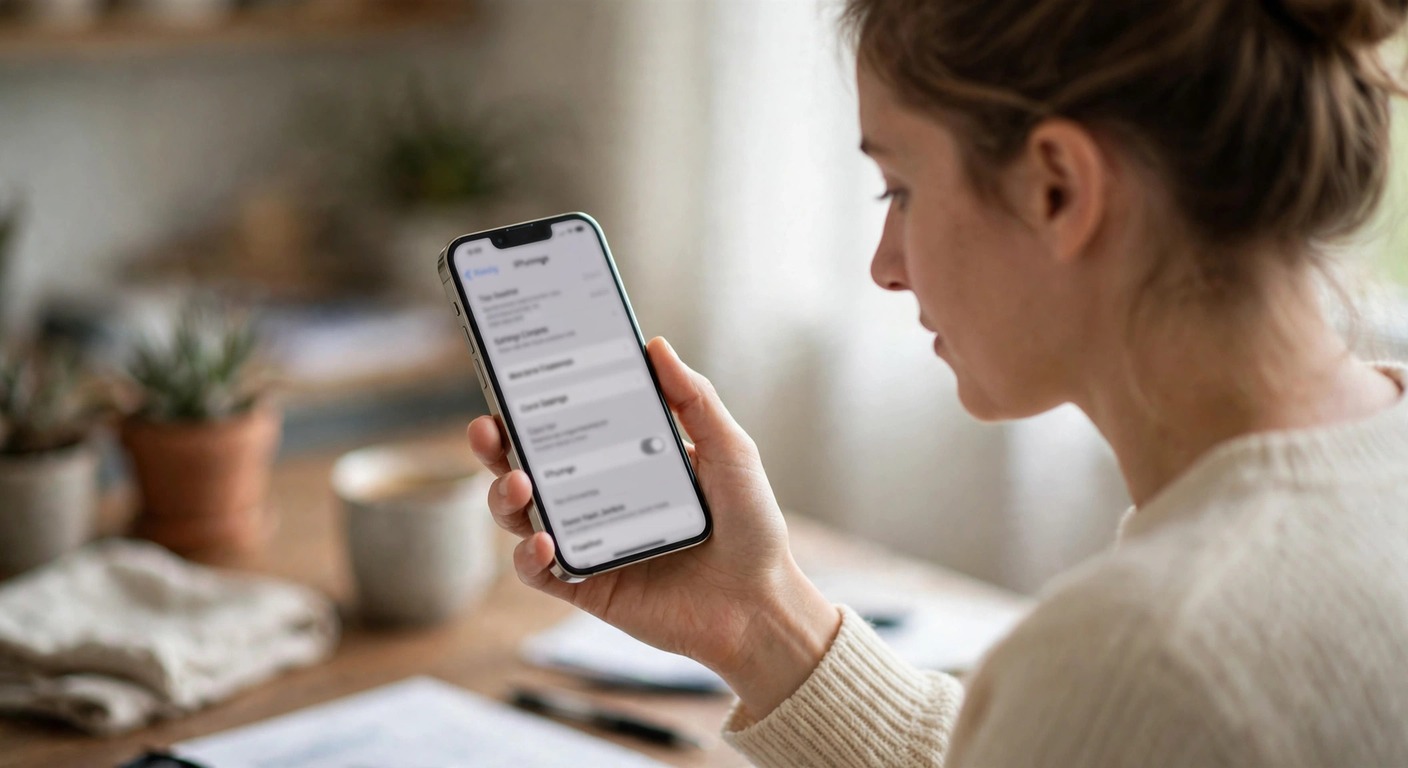
How to Turn Off Find My iPhone (2026 Guide)
Short answer: To turn off Find My iPhone, go to Settings → [your name] → Find My → Find My iPhone and toggle it off, then enter your Apple Account password and tap Turn Off. This also removes Activation Lock, which is why Apple requires it before you sell, trade in, or send your iPhone for repair.
How Do I Turn Off Find My iPhone in Settings?
This is the standard method and it works on iOS 17, iOS 18, and later. It disables Find My without erasing anything on the phone.
- Open the Settings app.
- Tap your name at the very top of the screen (your Apple Account page).
- Tap Find My.
- Tap Find My iPhone.
- Toggle Find My iPhone off.
- Enter your Apple Account password when prompted, then tap Turn Off.
When the toggle is off, your iPhone disappears from the Find My app on your other devices, and Activation Lock is removed. Apple will also send you an email confirming that Find My was turned off, which is a security measure in case someone else did it.
Before you start: back up anything important. Turning off Find My does not delete data, but the situations that call for it (selling, trading in, repairs) usually involve wiping the phone afterward. Go to Settings → [your name] → iCloud → iCloud Backup and tap Back Up Now first.
What If the Find My Toggle Is Grayed Out?
If the Find My iPhone toggle will not budge, Stolen Device Protection is almost certainly the reason. Since iOS 17.3, Apple requires this security feature to be off before Find My can be disabled, because Stolen Device Protection depends on Find My to work.
- Open Settings.
- Tap Face ID & Passcode and enter your passcode.
- Tap Stolen Device Protection.
- Toggle Stolen Device Protection off. You will need to authenticate with Face ID.
- Go back to Settings → [your name] → Find My → Find My iPhone and turn it off as described above.
Note the security delay: if you are away from a familiar location, turning off Stolen Device Protection may require a one-hour waiting period. Do this at home, where your iPhone recognizes the location, to avoid the delay.
How Do I Turn Off Find My iPhone Remotely?
If you already sold, traded in, or no longer have the iPhone, you can remove it from your account from any browser.
- Go to iCloud.com and sign in with your Apple Account.
- Open Find Devices (listed as Find My iPhone on some versions).
- Click All Devices at the top and select the iPhone.
- If the device is offline, click Remove from Account. If it is online, you can Erase iPhone first, then remove it.
Do not just erase a lost iPhone and assume you are done. Erasing without removing the device from your account leaves Activation Lock in place, which is fine for a lost phone but a disaster for a sold one. The new owner would be stuck at the Activation Lock screen asking for your password. Always complete the Remove from Account step when transferring ownership.
What Happens When I Turn Off Find My iPhone?
Turning off Find My iPhone changes several things at once. Here is exactly what you lose and what stays:
| What changes | Details |
| Device disappears from Find My | The iPhone no longer appears on the map in the Find My app or on iCloud.com |
| Activation Lock removed | Anyone can erase and set up the phone with their own Apple Account |
| Email from Apple | You get a confirmation email as a security alert |
| Location sharing stops | Nobody can see this device’s location through Find My |
| Your data stays | Photos, messages, and apps are untouched; only the finding feature is off |
You can turn Find My back on any time by following the same steps and toggling it on. Nothing is permanent.
When Should I Turn Off Find My iPhone?
There are really only four legitimate reasons to turn it off:
- Selling the iPhone. The buyer needs Activation Lock removed or they cannot use the phone. Turn off Find My, then erase the phone.
- Trading it in. Apple and carriers require Find My to be off before they accept a trade-in.
- Sending it for repair. Apple Stores and authorized repair providers ask you to disable Find My so they can test the device.
- Giving it to a family member. Same as selling: remove Activation Lock so they can sign in with their own account.
In every case, the correct order is: back up → turn off Find My → erase the phone (Settings → General → Transfer or Reset iPhone → Erase All Content and Settings).
Should I Turn It Off If My iPhone Is Lost or Stolen?
No. Absolutely not. If your iPhone is lost or stolen, turning off Find My is the worst thing you can do. It removes Activation Lock, which is the main thing stopping a thief from wiping and using your phone.
Instead, do this:
- Go to iCloud.com → Find Devices or use the Find My app on another Apple device.
- Select the iPhone and turn on Mark As Lost. This locks the phone with your passcode, displays a custom message with your contact number, and keeps tracking it.
- If you are sure it is gone for good, you can Erase iPhone remotely. Keep it in your account afterward so Activation Lock stays on.
Keep Find My on for a lost device. Turn it off only when you are deliberately handing the phone to someone else.
The Bottom Line
Turning off Find My iPhone takes a minute: Settings → your name → Find My → Find My iPhone → toggle off → enter your password. Do it before selling, trading in, repairing, or giving away your phone, because it removes the Activation Lock that would otherwise brick the device for its next owner. If Stolen Device Protection blocks you, disable that first. And if the phone is lost or stolen, do the opposite: keep Find My on and mark it as lost.
Does turning off Find My iPhone erase my data?
No. Turning off Find My only disables the locating feature and removes Activation Lock. Your photos, messages, and apps stay on the phone. (Erasing is a separate step you do afterward when selling or trading in.)
Can I turn off Find My iPhone without the Apple Account password?
No. Apple requires the password specifically to stop someone with temporary access to your phone from removing its theft protection. If you forgot the password, reset it at iforgot.apple.com first.
Why is the Find My iPhone toggle grayed out?
Stolen Device Protection is on. Turn it off under Settings → Face ID & Passcode → Stolen Device Protection (with Face ID authentication), then the Find My toggle will work.
Does signing out of my Apple Account turn off Find My?
Yes. Signing out of your Apple Account on the iPhone also disables Find My on that device, since Find My is tied to the account. You will still need your password to sign out.
Will the buyer know I turned off Find My?
They do not need to know, but they will know if you did not: a phone with Activation Lock still on shows an Apple Account login screen during setup that only your password can clear. Always turn it off before handing over the phone.
Can I turn Find My back on later?
Yes. Follow the same steps and toggle Find My iPhone on. It reactivates immediately with no waiting period.
Does turning off Find My stop all location sharing?
It stops Find My location sharing for that device. But check separately: Google Maps, WhatsApp live location, and carrier family-locator services each keep their own sharing lists and are not affected by Find My.